

Many smartphone privacy risks come from apps and services that collect more data than users realize. These risks often come from applications that gather too much data. Personal information can be obtained if not properly monitored, such as from Location Data, microphone access, advertising identifiers, and lock-screen notifications.
Fortunately, there are privacy controls built into both iPhone and Android devices, which allow you to choose what apps can have access to. Check out these 7 settings.
Stop Apps From Accessing Your Exact Location
Numerous applications ask for your exact location when they don’t actually need it.
An app designed to show the weather, for instance, typically doesn’t need to be able to see your precise address to forecast the weather.
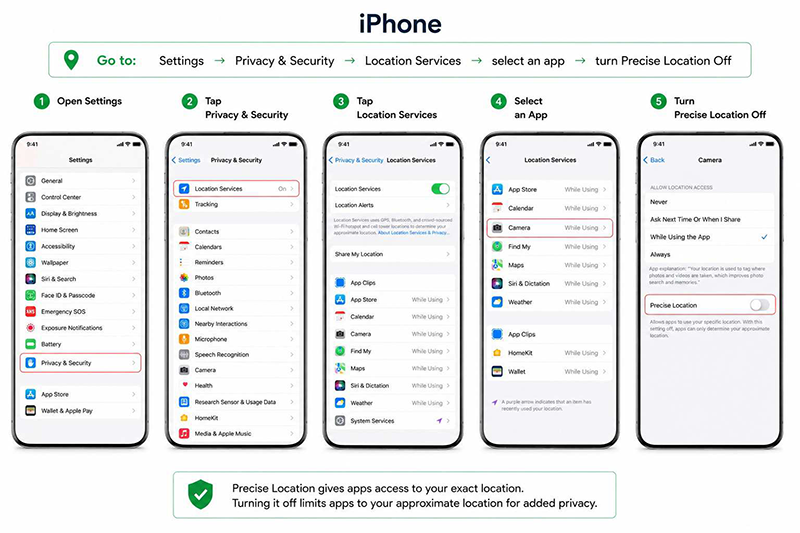
iPhone
Go to:
Settings → Privacy & Security → Location Services → select an app → turn Precise Location Off
Android
Go to:
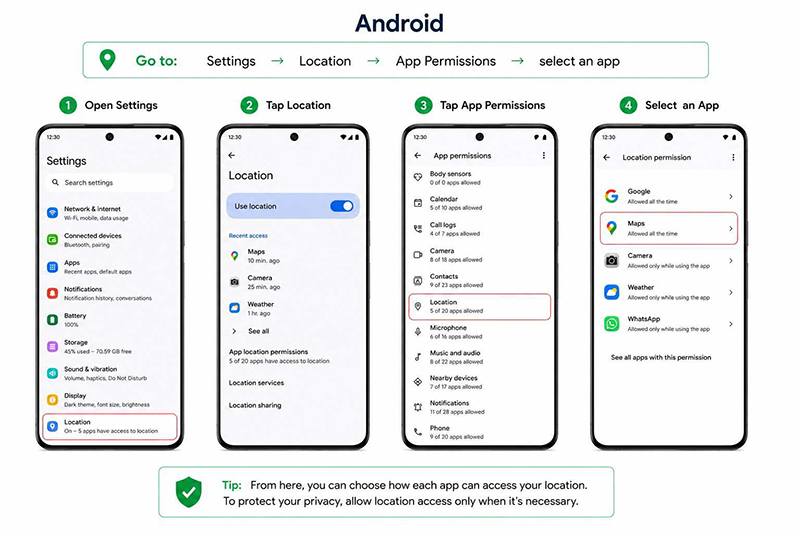
Settings → Location → App Permissions → select an app → turn off Use Precise Location (if available)
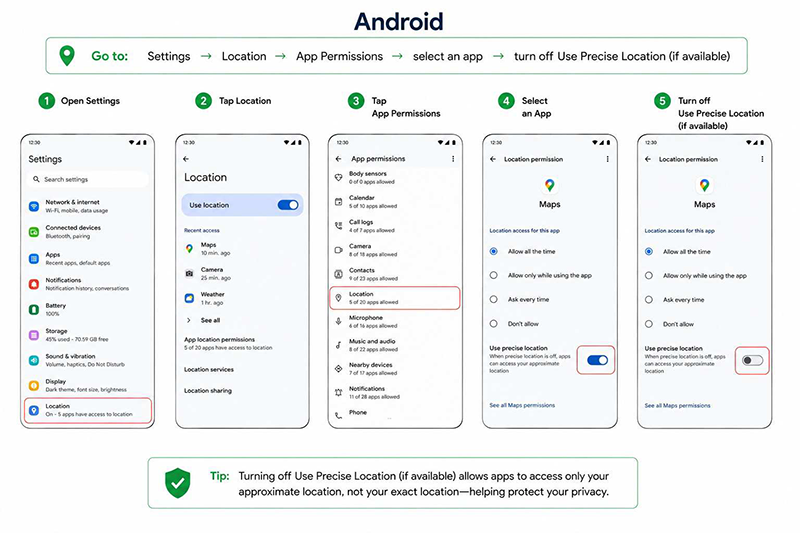
This enables the app to identify a general area, but not your exact location.
Limit Location Access to When an App Is Being Used
Some apps will still track location data, even if they aren’t active.
Check app permissions and determine if each app really requires persistent access.
Most apps will have enough functionality with the While Using the App option, so there is no need to allow background tracking.
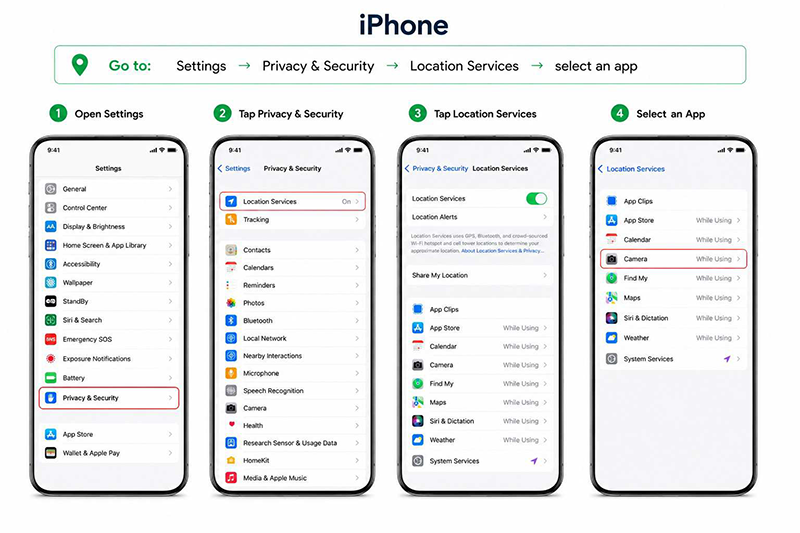
iPhone
Settings → Privacy & Security → Location Services → select an app
Android
Settings → Location → App Permissions → Select an app
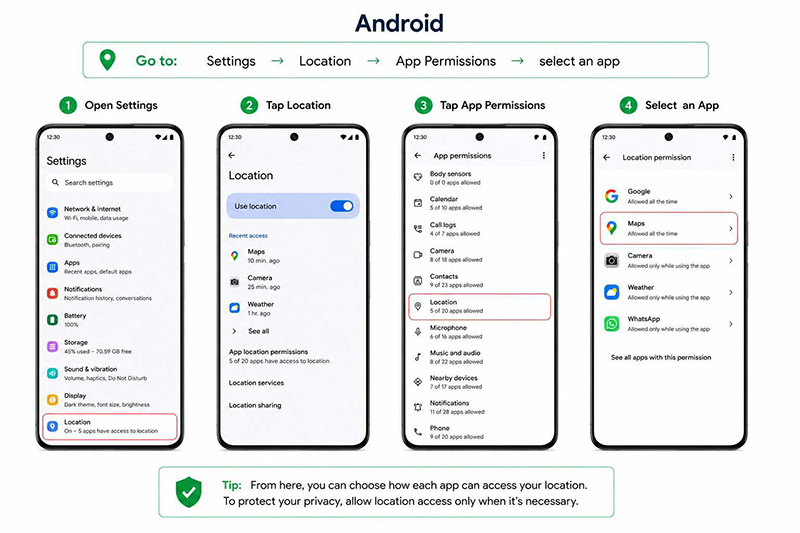
Select the most restrictive setting that will allow the application to function correctly.
Reduce App Tracking and Personalized Advertising
Numerous apps employ advertising identifiers for app and website tracking.
The removal or restriction of this tracking can decrease the information that is collected to be used to create advertising profiles.
iPhone
Go to:
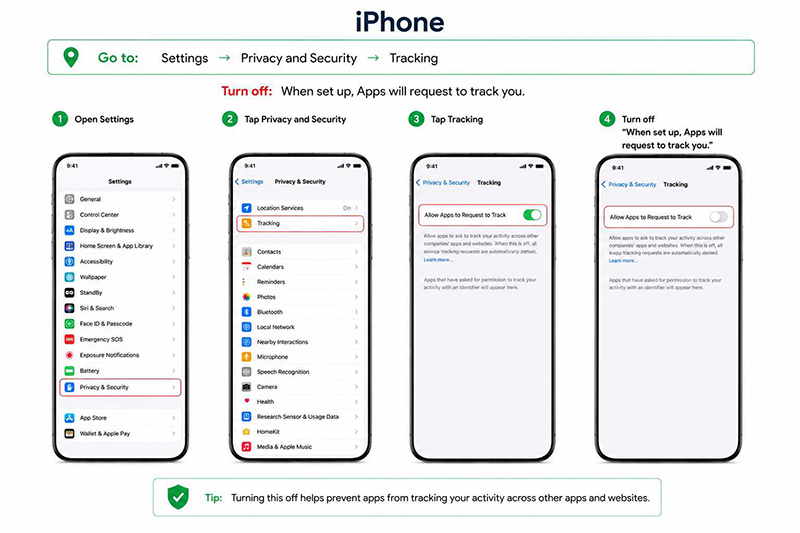
Settings → Privacy and Security → Tracking
Turn off:
When set up, Apps will request to track you.
Android
Go to:
Settings → Privacy → Ads
Then select:
Clear or set advertising preferences (or options) on your device, if present.
Microphone Access
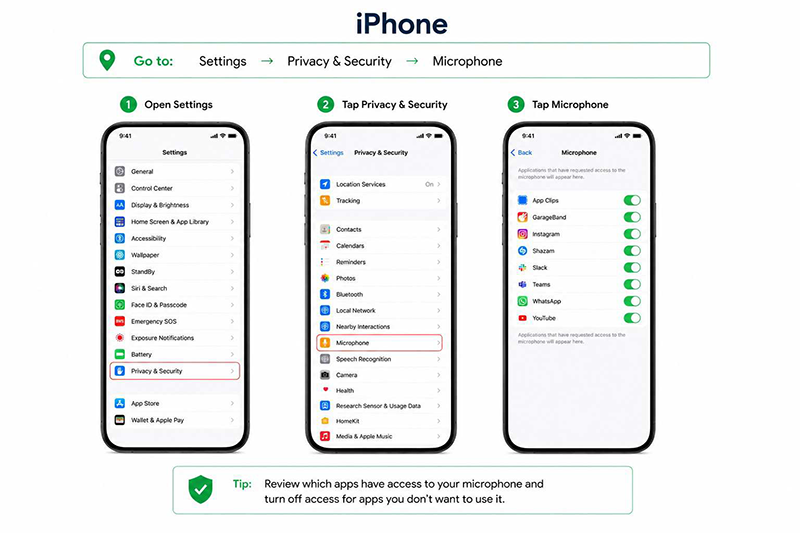
Some apps need to use the microphone, but others don’t need it at all.
iPhone
Go to:
ADVERTISEMENT
Settings → Privacy & Security → Microphone
Android
Go to:
Settings → Privacy → Permission Manager → Microphone
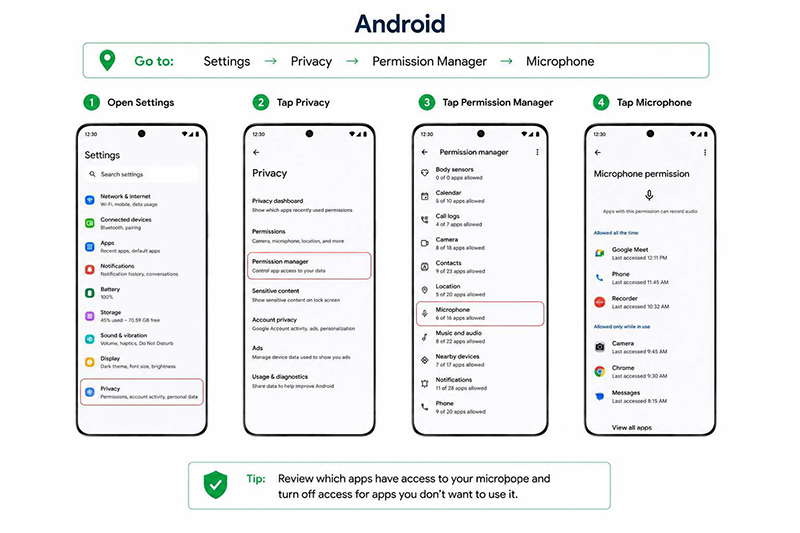
If there are apps that don’t require recording audio, then remove access for them.
Review Which Apps Can Use Your Camera
Microphone permissions should be considered in the same way as camera permissions.
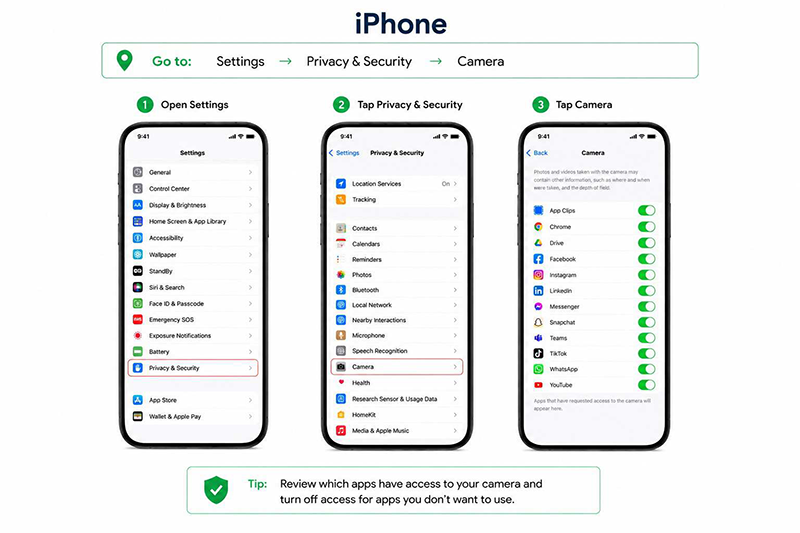
Many apps don’t require camera access, unless it is for a social media or video-calling app.
iPhone
Go to:
Settings → Privacy & Security → Camera
Android
Go to:
Settings → Privacy → Permission Manager → Camera
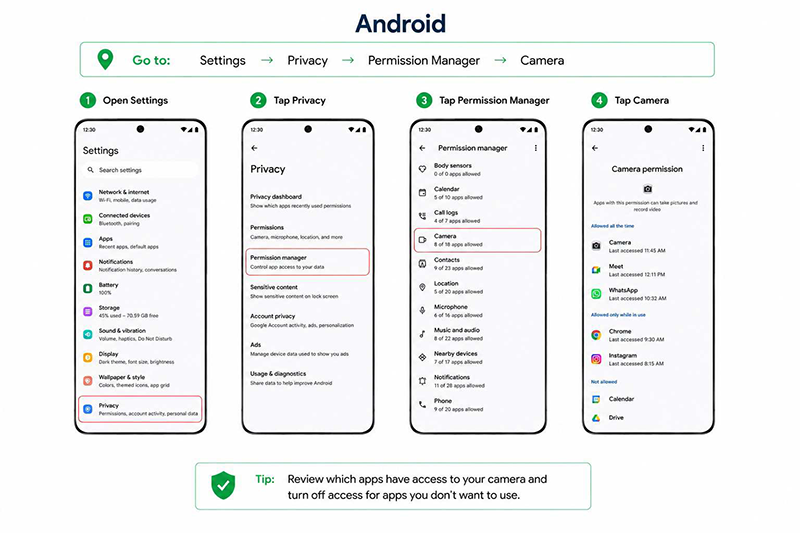
Check the list and turn off access if it is not needed.
Hide Sensitive Notifications on Your Lock Screen
Your phone can provide plenty of information without even being unlocked.
Depending on your device settings, the lock screen may display text messages, email previews, verification codes, and calendar reminders.
iPhone
Go to:
Settings → Notifications → Show Previews
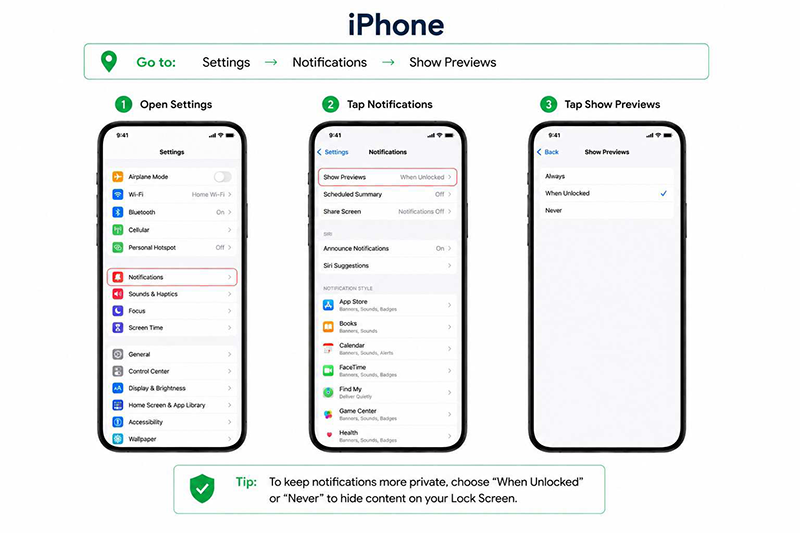
Choose:
When Unlocked or Never
Android
Go to:
Settings → Notifications → Notifications on Lock Screen
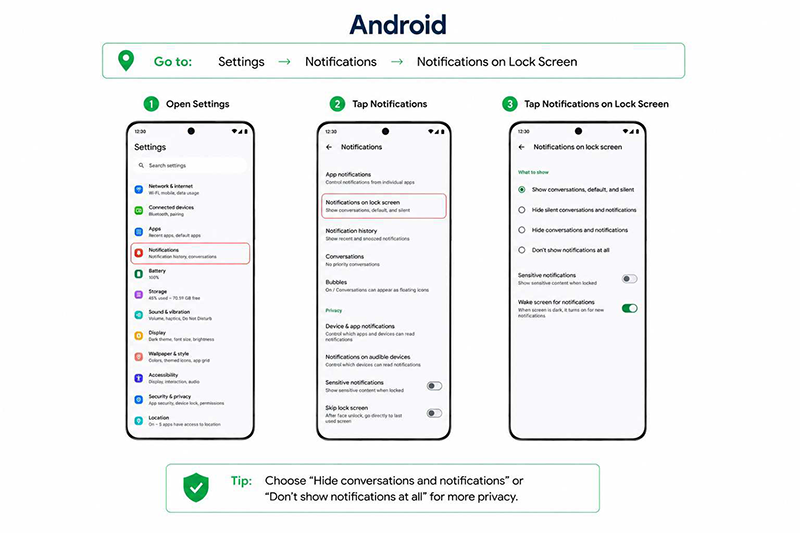
Next, you can choose to hide sensitive information or hide all notifications.
That way, no one who picks up your cell phone will be able to see your private data.
Audit App Permissions Regularly
While privacy settings may be set properly right now, apps and updates might add new permissions down the road.
Review, every few months, which apps can access:
- Location
- Camera
- Microphone
- Contacts
- Photos
Remove permission when it is no longer required.
There is no special software or expertise needed to improve the privacy of smartphones. By spending just a few minutes on these seven settings, you can greatly limit the amount of personal information apps are collecting and, more importantly, have greater control over your data.