

Many users think that if they close an app, it no longer tracks them. Some apps may continue collecting certain data or using permissions you’ve already granted, even when you’re not actively using them. Fortunately, both iPhone and Android also offer privacy controls that give you significantly more control if you look for them, helping you protect your data online.
We at Handy Gear think it’s important for everyone who owns a smartphone to know about the app-tracking settings already in place. Taking the time to browse through them can have a huge impact on your privacy without altering your phone’s functionality.
iPhone: Turn Off App Tracking Requests
When an app wants permission to personalize ads using your activity outside that app, iPhone can display a request asking for your approval. Turning off “Allow Apps to Request to Track” prevents new requests from appearing.
To check out the setting:
Settings → Privacy and Security → Tracking
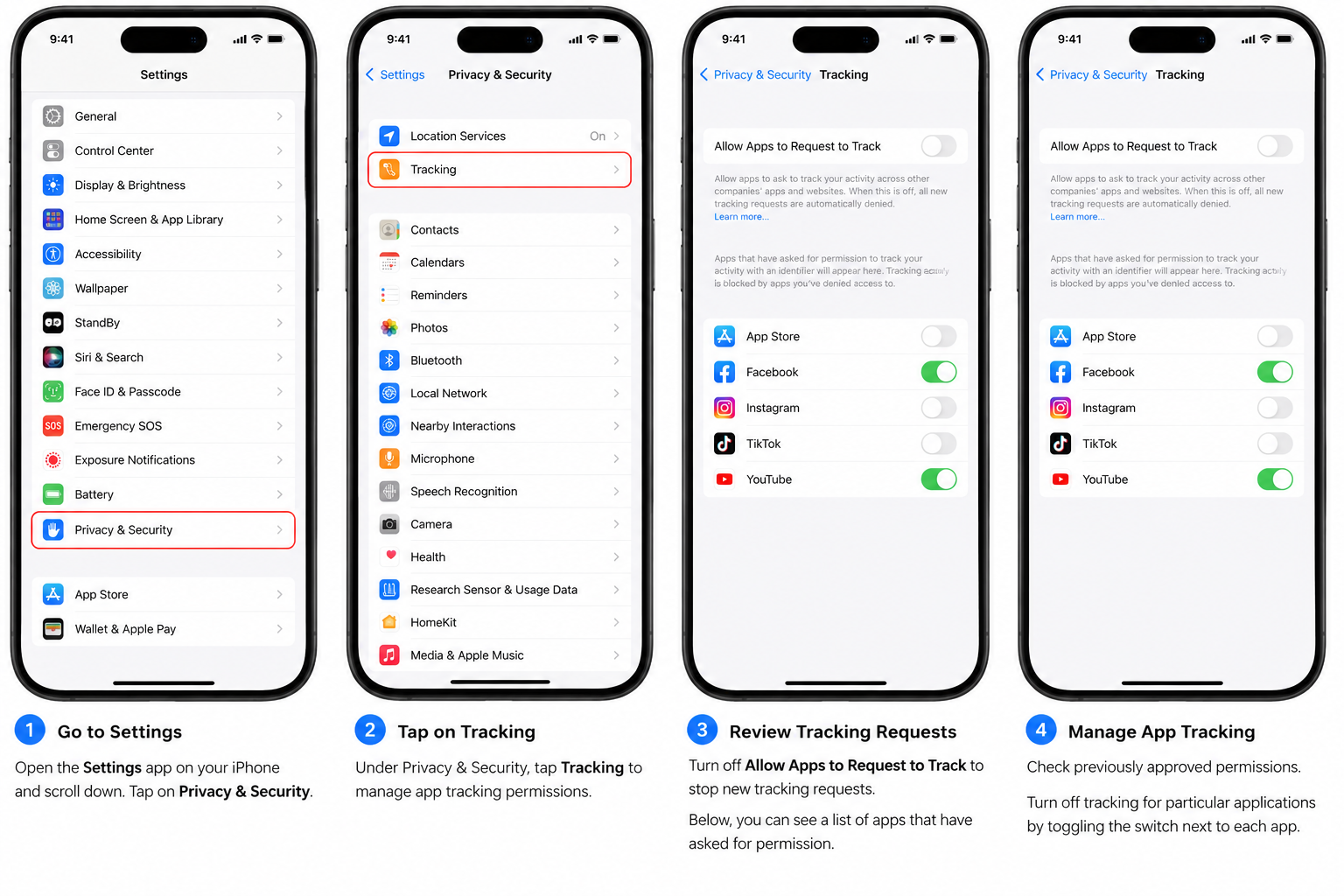
Here you can:
- Turn off “Allow Apps to Request to Track” so apps can no longer ask for tracking permission.
- Check previously approved permissions.
- Turn off tracking for particular applications.
This does not block all kinds of data collection. Apps can also collect information to offer their own services or to provide data essential for data security or fraud prevention.
Android: Limit Advertising Personalization
Rather than using the same system, Android lets you have the same App Tracking Transparency system as Apple.
Conversely, you can limit the use of your Advertising ID to reduce the amount of personalized advertising you receive.
Go to:
Settings → Privacy → Ads
(Names may vary slightly depending on your Android device.)
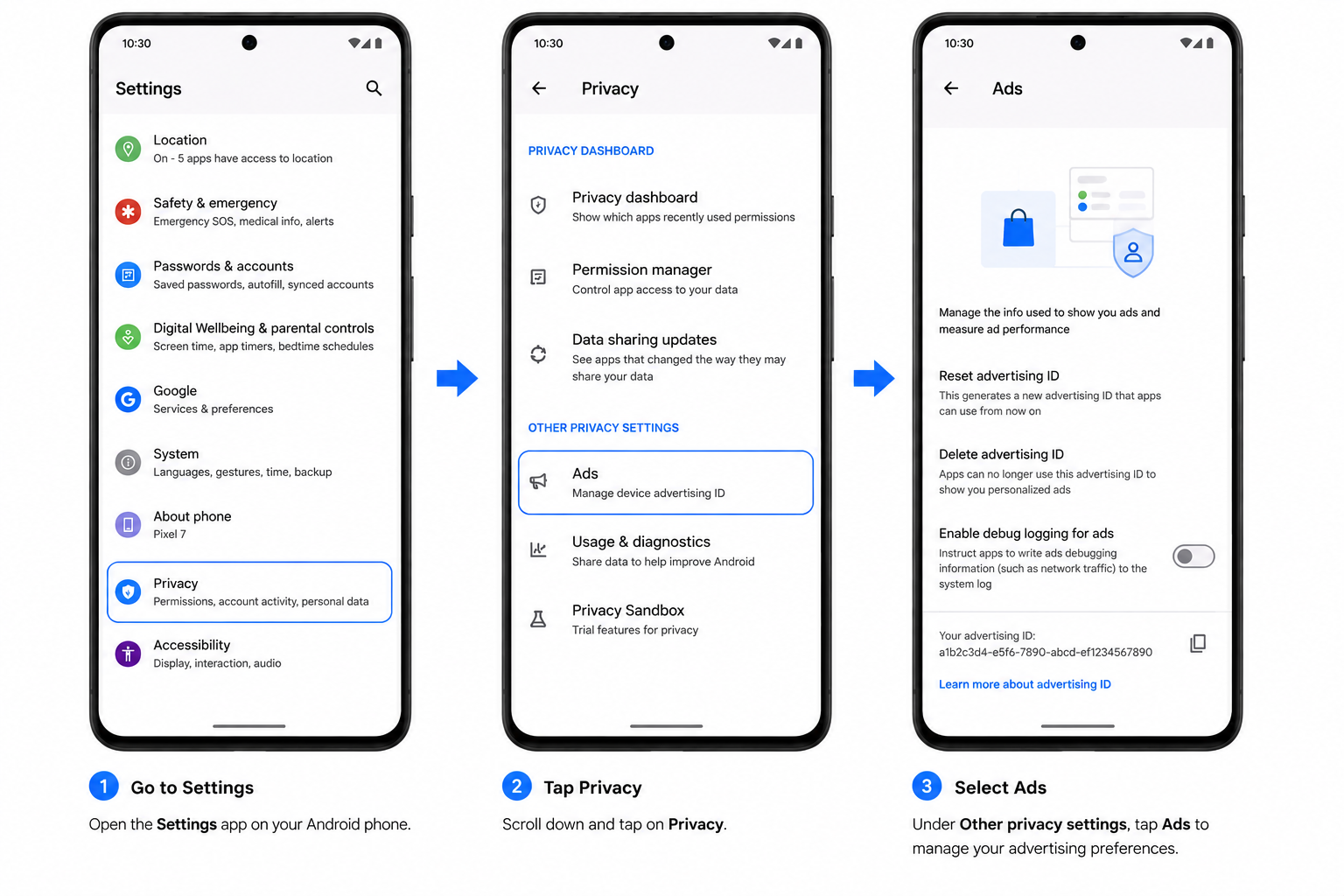
You can then opt to reset or delete your Advertising ID, depending on the version of Android you use. This limits how advertisers use that identifier to personalize ads across apps.
ADVERTISEMENT
Review App Permissions Regularly
A lot of apps ask for access to the following information:
- Location
- Camera
- Microphone
- Contacts
- Photos
Don’t grant permissions the app doesn’t actually require.
You can view permissions on both iPhone and Android by opening:
Settings → Privacy (or Privacy & Security)
Then tap on the permission category to view the list of apps that have access to it.
Choose Smarter Location Settings
Location permission is a special consideration.
If an app only needs your location when you are using it, select While Using the App rather than allowing continuous background access. If it’s not required, switch it off altogether for that app.
Keep Your Apps Updated
Updates are released regularly that contain security enhancements and privacy fixes.
Ensuring that your operating system and apps remain up to date helps you access up-to-date privacy controls and protections.
The Setting Is Only the First Step
The first step is to turn off Allow Apps to Request to Track on iPhone or reset or delete the Advertising ID on Android, but this will not prevent all data from being collected.
The strongest privacy protection comes from combining these settings with careful permission management. Checking camera, microphone, location, and contact access every couple of months gives you much more control over the information your apps can see – and what they can’t.