

A lot of apps gather details on how you use your device, websites you visit, and ads you click on. This information is frequently used to create advertising profiles and deliver personalized ads. You can’t avoid all online tracking, but there are settings on iPhone and Android devices that you can use to curb the amount of tracking apps can do.
This guide explains some of the most important privacy settings and how to enable them.
Removing App Tracking
Turn off App Tracking on iPhone
With Apple’s App Tracking Transparency feature, you can choose whether apps are able to track your activity when using other apps and websites.
Go to:
Settings→ Privacy & Security→ Tracking.
Then turn off:
App tracking
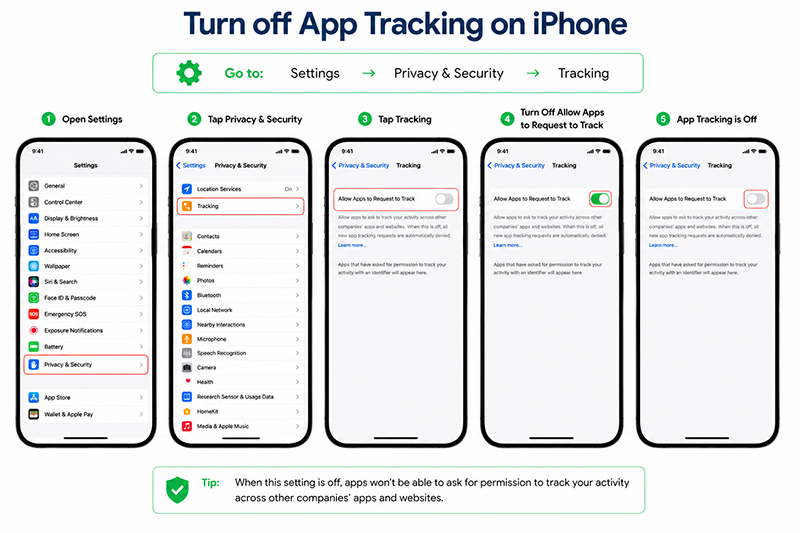
When enabled, your iPhone will prompt you for permission every time an app asks to track your activity. Previous permissions can also be checked, and Ask App Not to Track can be set per app.
Turn off Ad Personalization on Android.
Android provides an advertising identifier that apps can use to track and measure ads.
Go to:
Settings > Privacy > Advertising
Then:
Remove Advertising ID
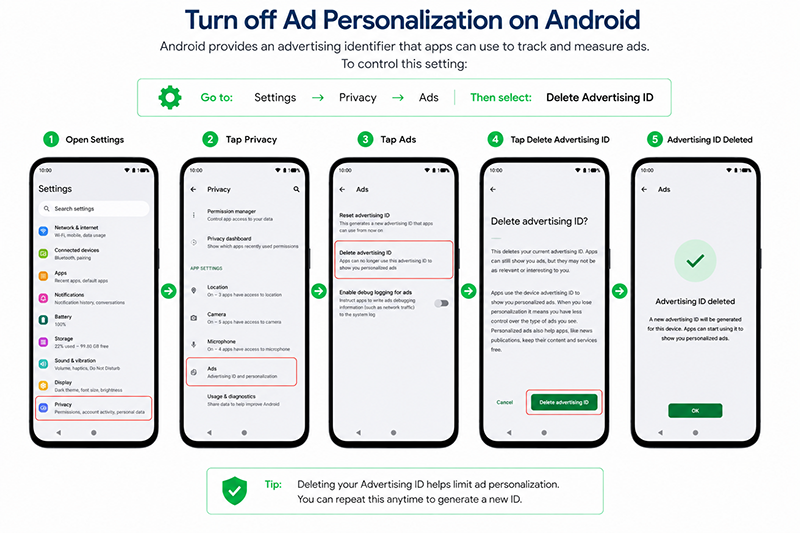
Depending on the Android device the menu names may be slightly different but it’s often under the Privacy menu.
Deleting the advertising ID may help to eliminate personalized advertising and tracking linked with that advertising identifier.
Review Location Permissions
Some apps request location permission but don’t need it for the core of what they perform.
For instance, an app for a game or shopping site doesn’t necessarily require access to your exact location all the time.
iPhone
Go to:
Settings → Privacy and Security → Location
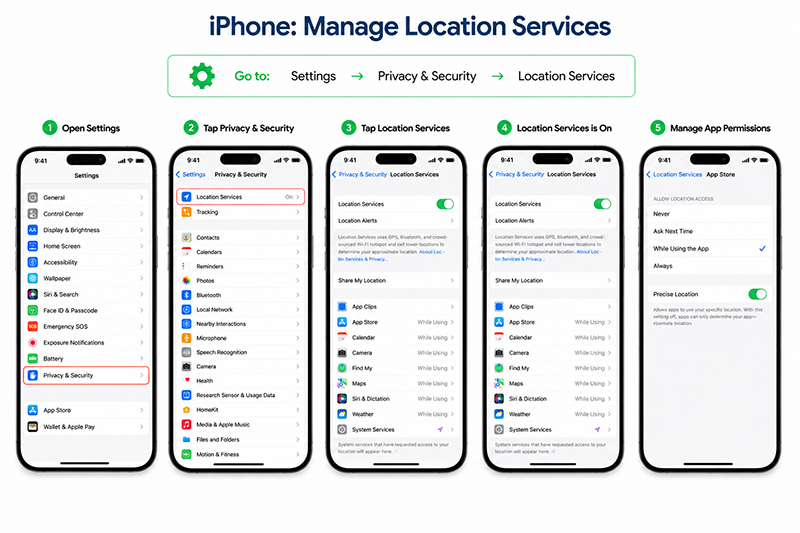 Pick an app and select:
● Never
● Ask Next Time
● While Using the App
Android
Go to:
ADVERTISEMENT
Settings → Location → App Permissions
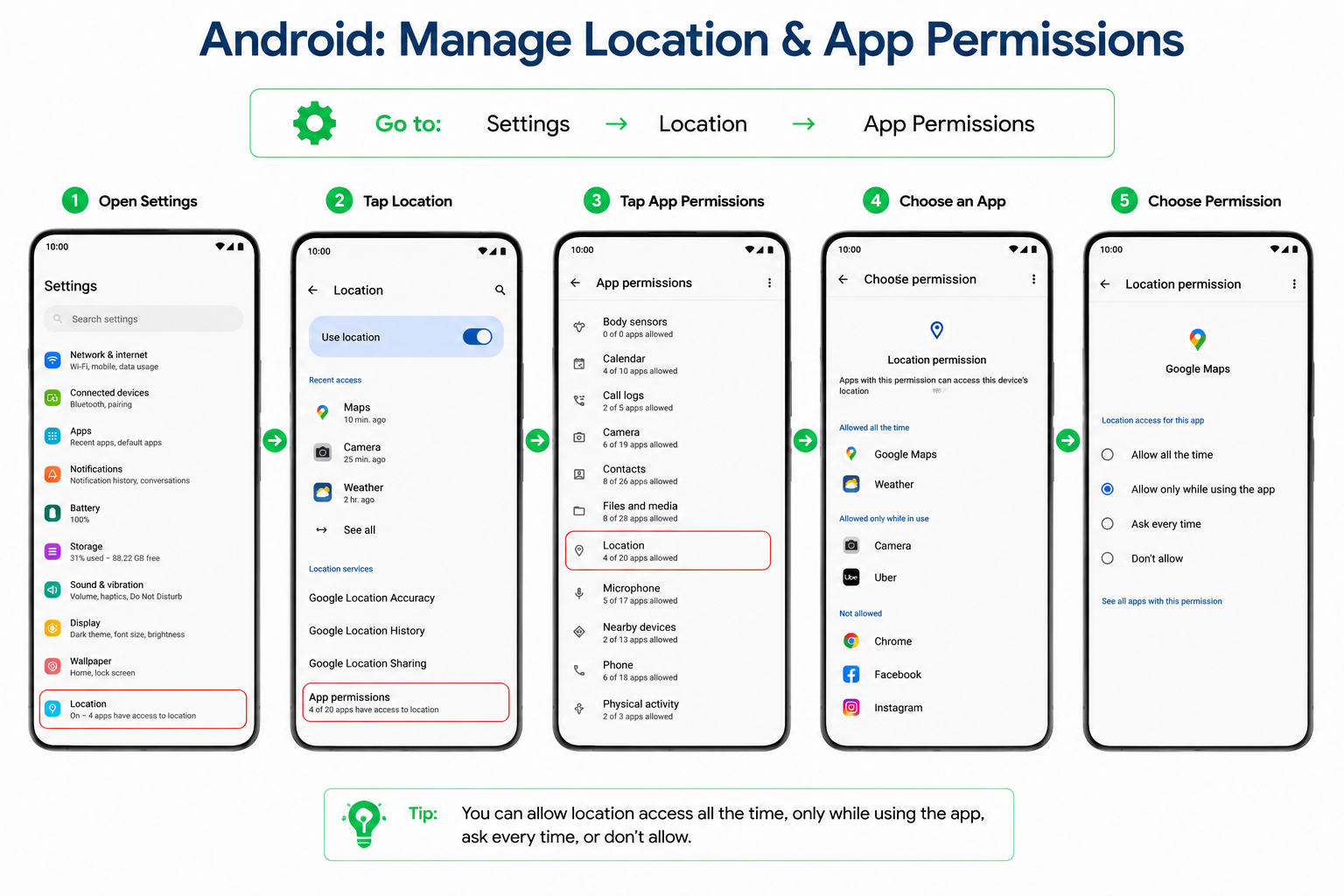
For each app, review and select the most restrictive setting needed to keep the app functioning.
Location information can reveal patterns about where you live, work, and travel.
Check Camera and Microphone Permissions
Apps will only be able to access the camera and microphone with permission.
It is important to check these permissions from time to time to make sure that apps do not have access to them unless needed.
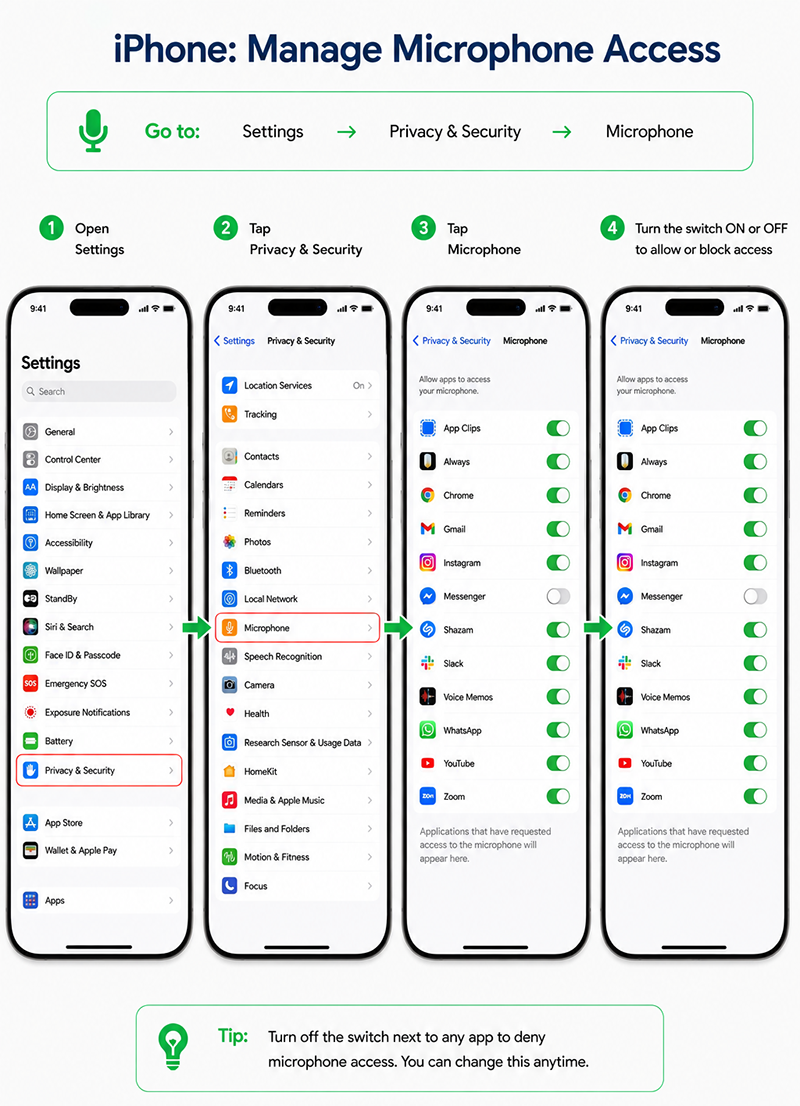
iPhone
Go to:
Settings → Privacy & Security → Microphone.
and
Settings → Privacy & Security → Camera.
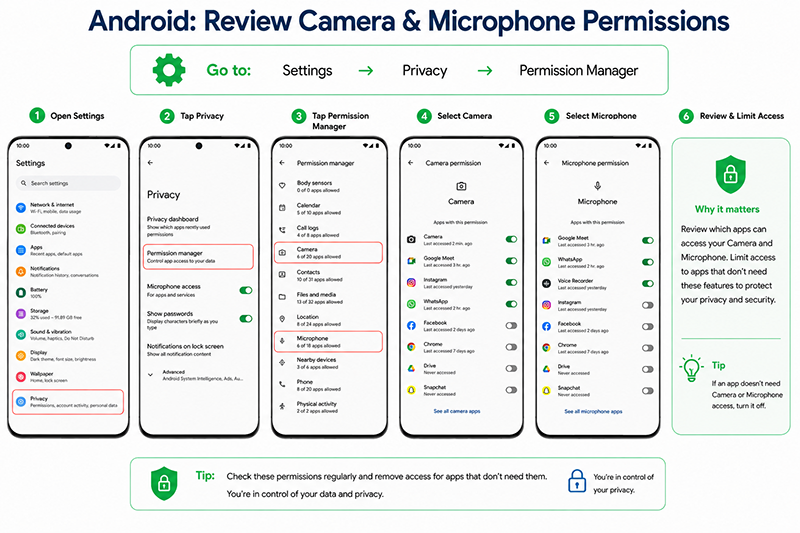
Android
Go to:
Settings → Privacy.
Then review:
● Camera
● Microphone
Limit access to apps that don’t need these features.
Review Which Apps Have Location Access
Some people install apps for navigation, family safety, or device location services. Other apps might still look for location data, however, for no apparent purpose.
Review each app with location access permissions and remove permissions that are no longer necessary. It shouldn’t take much time.
In particular, look at apps that have:
Grant all the time access.
While using the App offers a more balanced way to use the app while respecting the user’s privacy for most apps.
Review App Permissions Regularly
Privacy settings are not “set it and forget it.
As you install new apps and update existing ones, new permissions may be added.
Review access every few months for:
● Location
● Camera
● Microphone
● Contacts
● Photos
If an app doesn’t need a permission to perform its main function, then remove it.
Take Control of Your Privacy
While it is impossible to put a stop to every piece of online tracking, it is possible to minimize your exposure to unnecessary tracking. You can minimize the amount of information apps collect about your online activity by switching off app tracking requests, limiting ad personalization, regularly reviewing permission settings, and checking your location settings.