
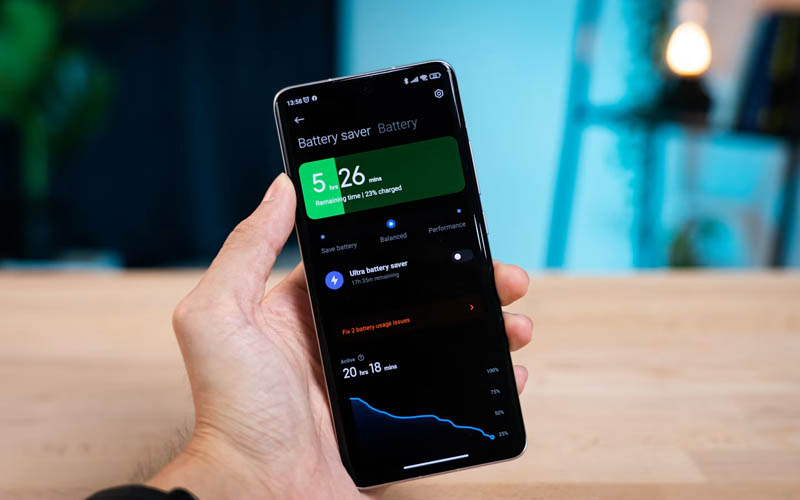

You charge your phone before bed, unplug it at 100% in the morning, and hope it lasts all day. Then, before you’ve even walked out the door, you see the charge has decreased substantially more than you would have expected.
At Handy Gear, we’ve found that not all batteries will drain overnight, and this isn’t always a sign of an old battery. Sometimes the problem is due to a setting that lets apps run in the background while your phone is idle. One commonly overlooked setting deserves a closer look before you replace the battery or assume something is wrong with your phone.
The Hidden Setting Worth Checking First
Some apps quietly check for new information while the phone isn’t being used. The benefit is that they can open with current content, but that convenience may also use battery power overnight.
On iPhone
Go to:
Settings → General → Background App Refresh
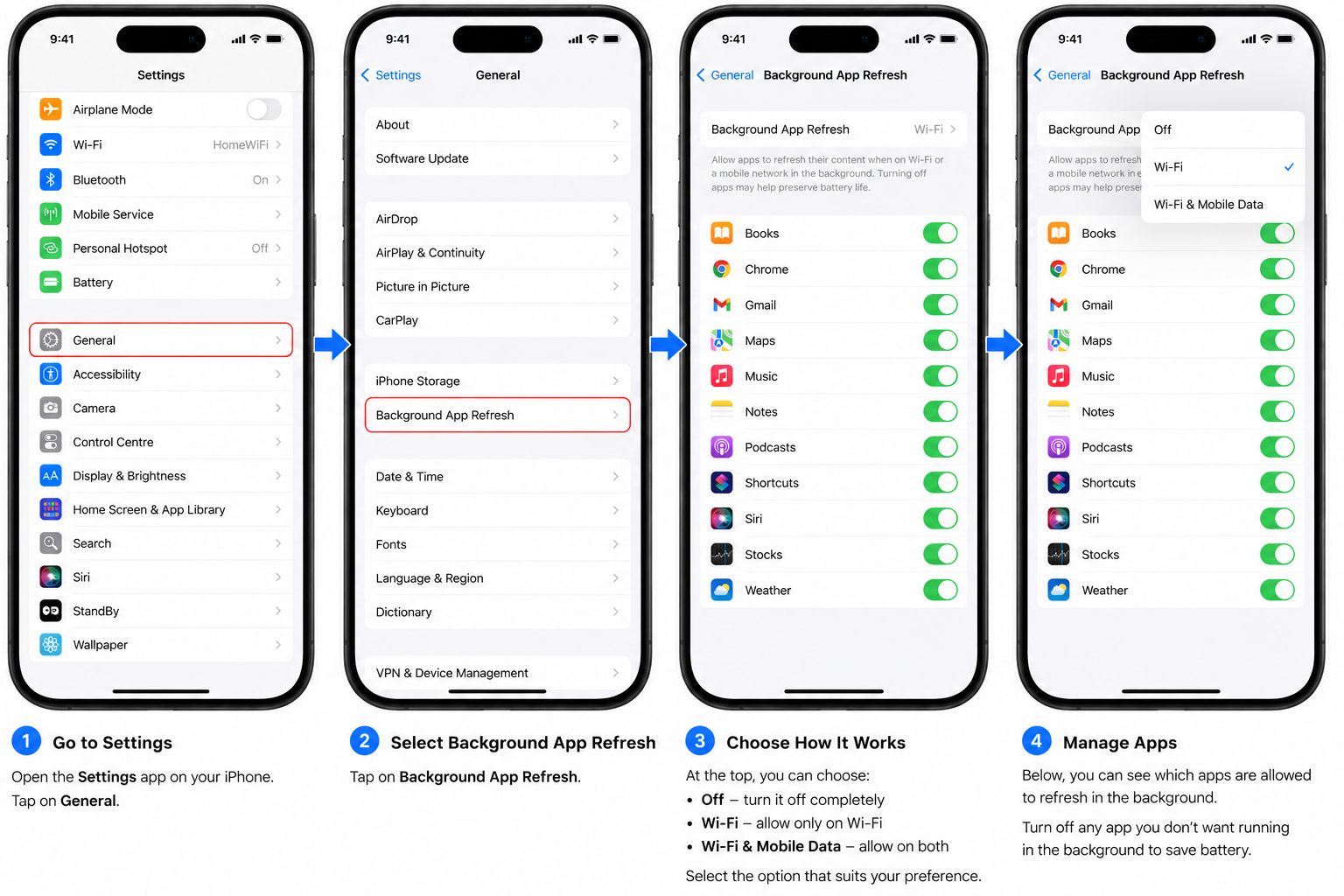
You can:
- Completely disable Background App Refresh.
- Use only when connected to WiFi.
- Only turn it off for applications that don’t require background updates.
Not everyone needs all the installed apps to refresh every night.
On Android
Android does not have a feature named Background App Refresh, but it provides battery optimization and background activity controls for individual apps.
Go to:
Settings → Apps → choose an app → Battery
On your device, select one of the following settings: Restricted, Background restriction, or another setting that reduces background activity.
You can also go through:
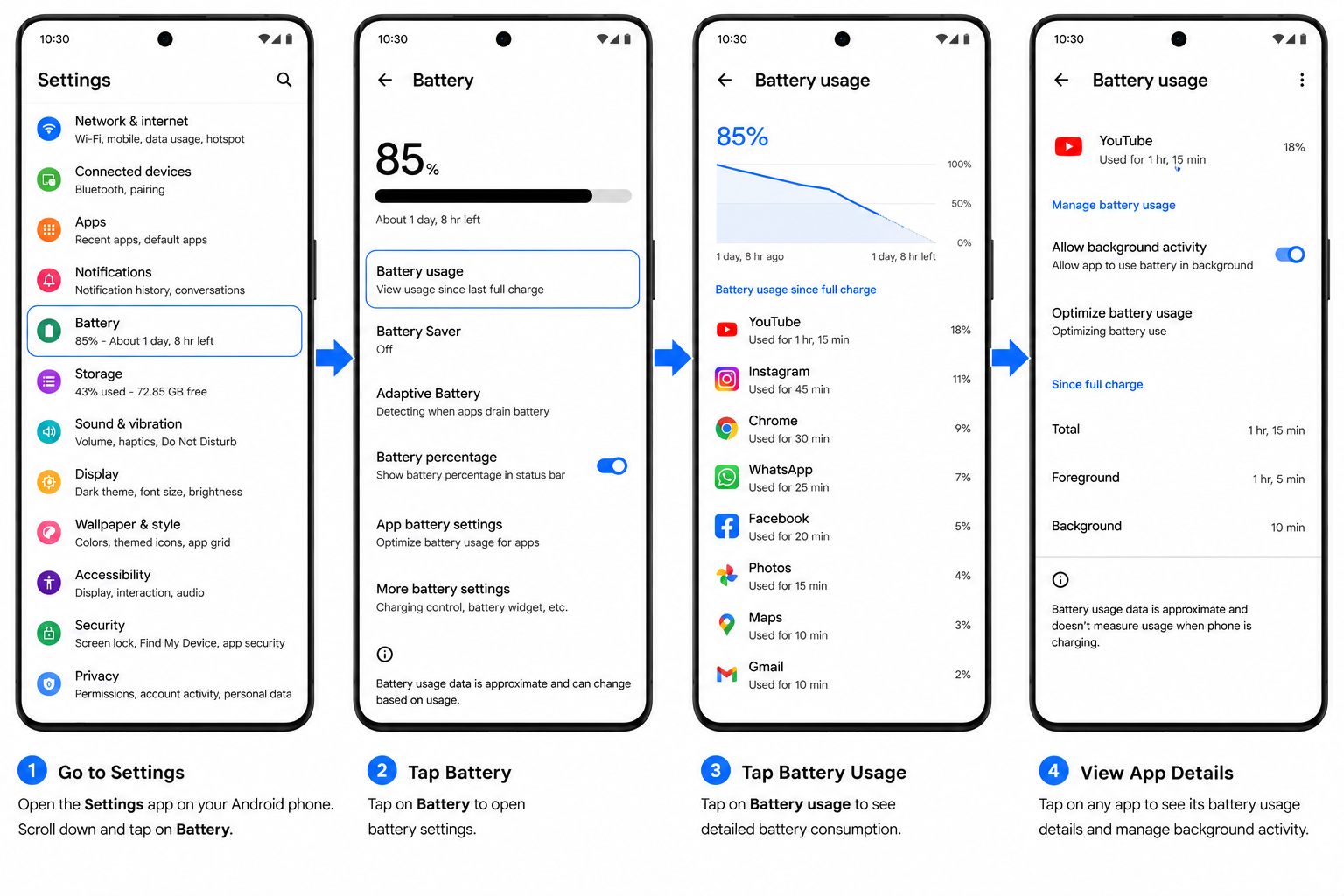
Settings → Battery → Battery Usage
Menu titles vary by manufacturer, but most Android phones include options to minimize background battery consumption.
Check Whether Background Activity Is the Cause
If the battery continues to lose a lot of charge overnight, check battery usage before making further changes.
ADVERTISEMENT
On iPhone
Go to:
Settings → Battery
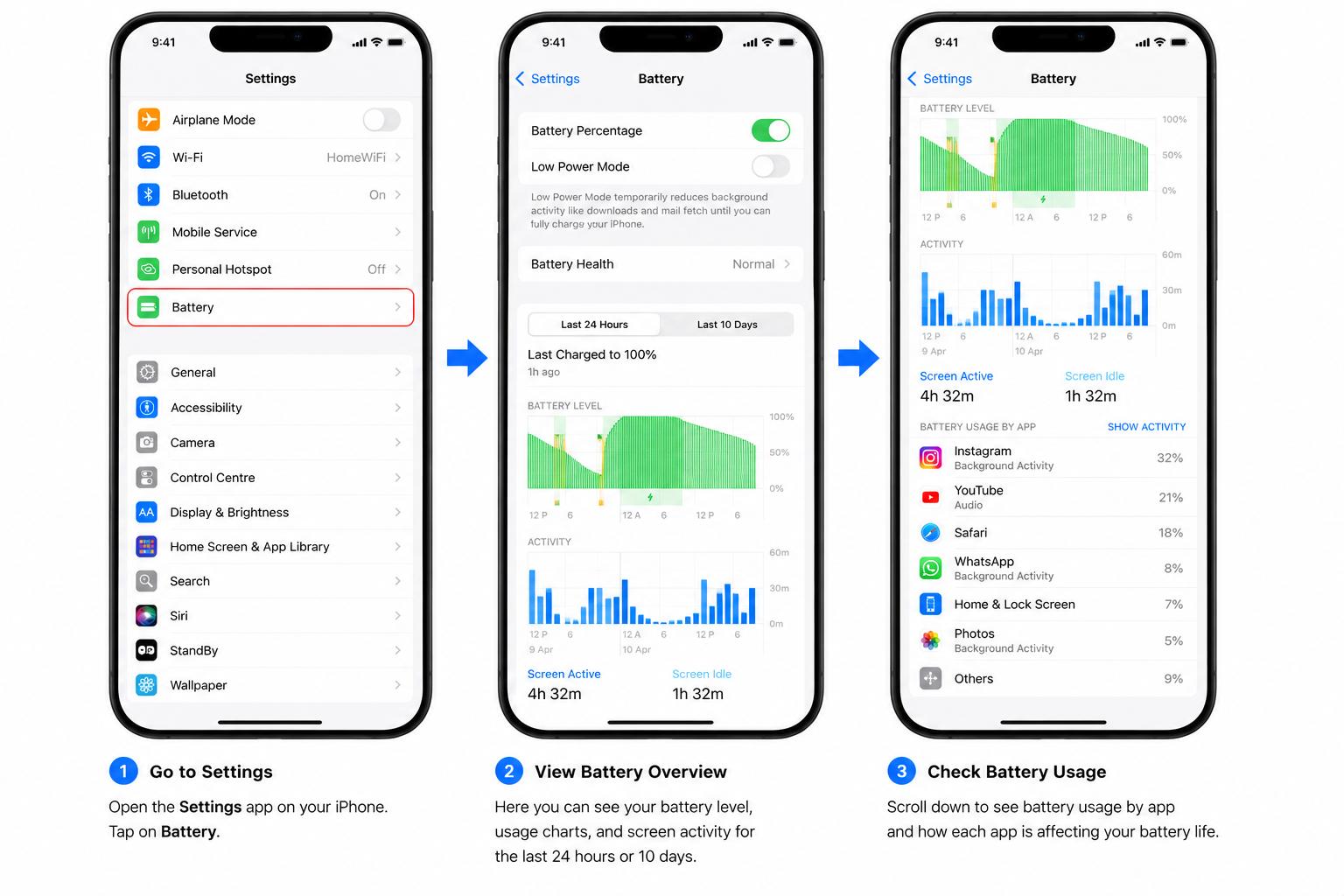
The Battery Usage section shows battery activity over the last 24 hours or the last 10 days.
On Android
Go to:
Settings → Battery → Battery Usage
Other Factors That Can Affect Overnight Battery Life
If limiting background activity isn’t enough, there are a couple of other settings that can help reduce battery drain.
Some email applications will still check for new messages in the middle of the night, particularly when real-time syncing is turned on. Without a strong signal, the device may consume more battery power by trying to find a stronger connection. Switching to Airplane Mode and enabling Wi-Fi (if required) when you know you are in an area with poor or no cell reception for the night can conserve battery life.
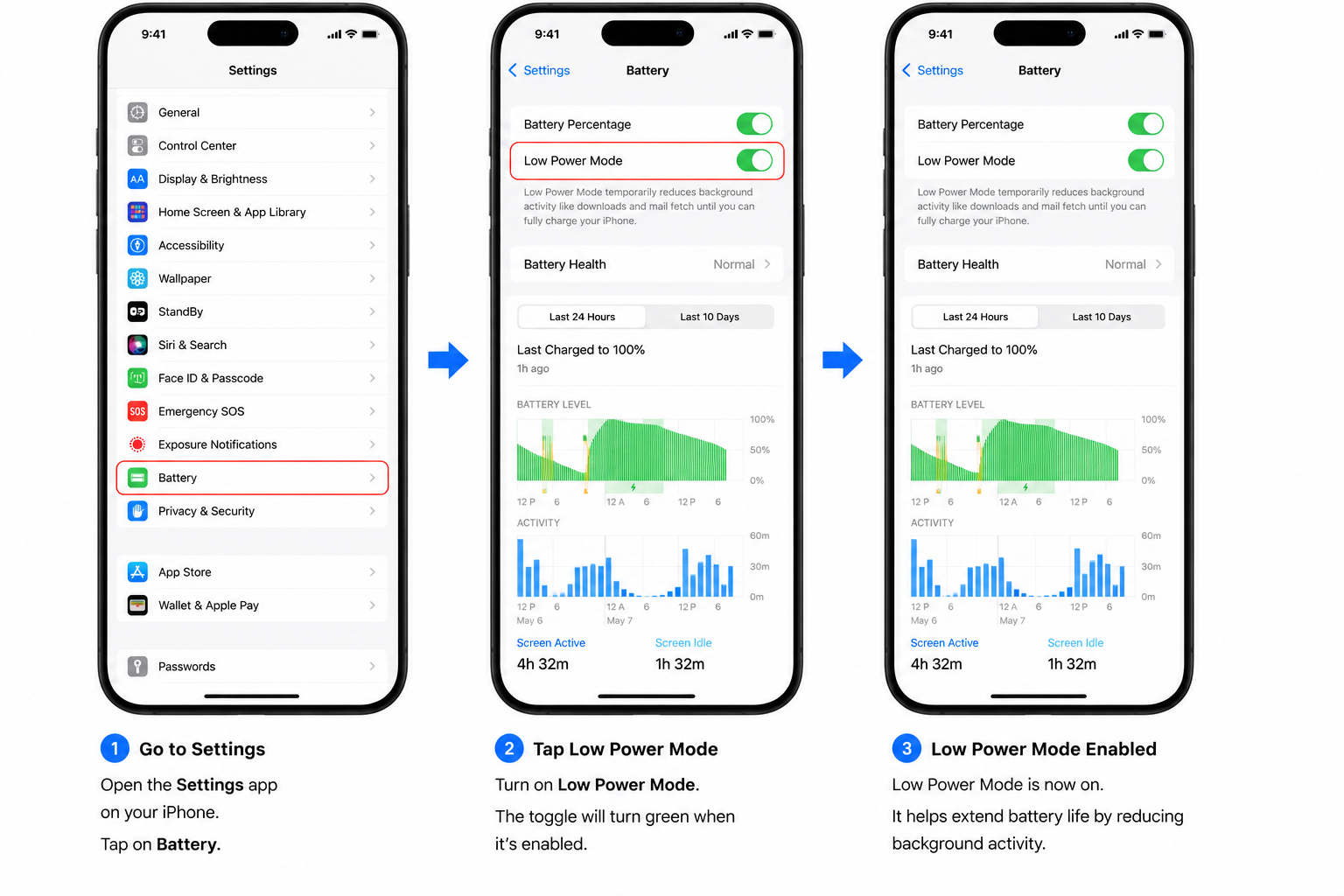
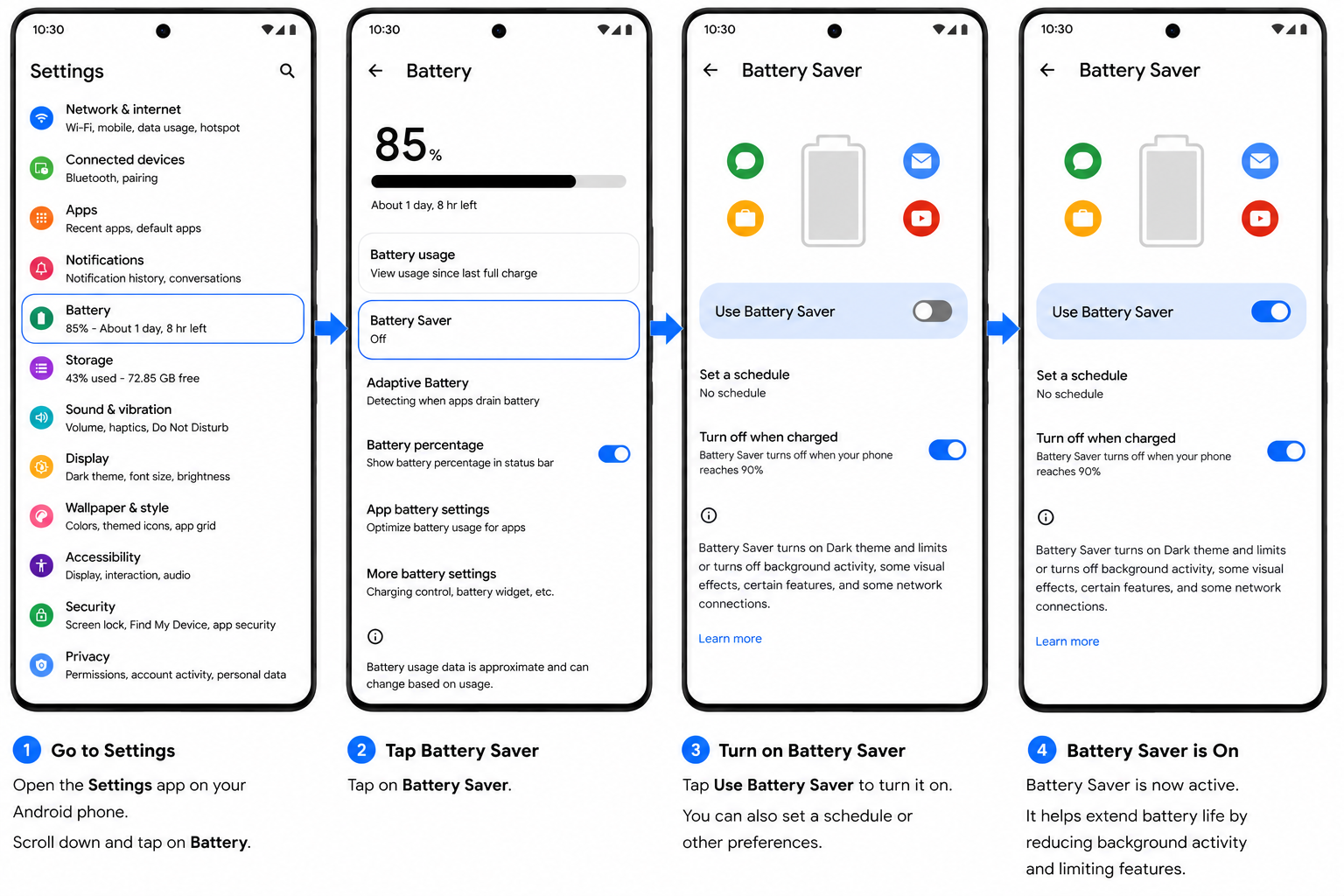
You can also activate the power-saving mode on your phone.
On iPhone
Go to:
Settings → Battery
On Android
Go to:
Settings → Battery
Start With the Simplest Check
Don’t replace a battery just because your phone is using up more battery power than normal during the night. The cause is often overlooked: background activity, and it only takes a few minutes to review these settings.
If you’ve reviewed these settings and the battery still drains unusually fast overnight, check battery usage, email sync settings, cellular signal strength, battery health, and your phone’s built-in battery-saving features to help identify the cause.