
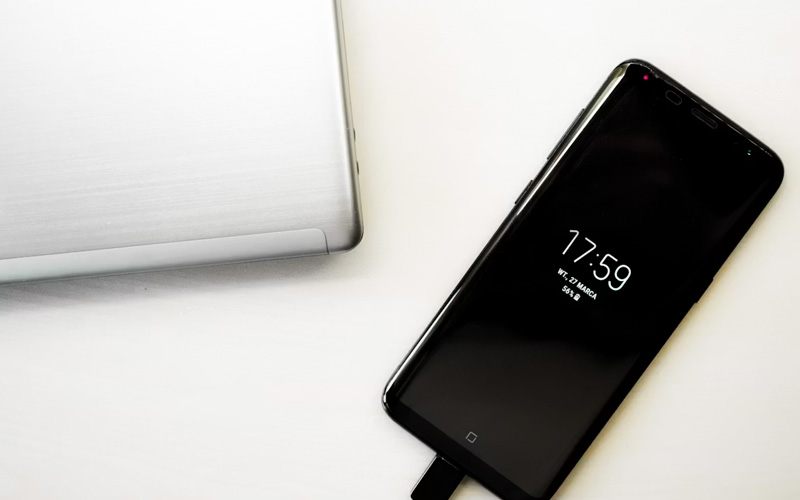

It’s incredibly frustrating to see your battery level decline rapidly before your day is over. Whether you’ve ever asked yourself why you have to charge your iPhone so often or why your Android phone won’t last the day, there are a number of things that are likely at play, including screen settings, background processes and battery usage.
Battery life can be easily improved by simply making a few changes in the phone setting which will greatly improve the battery life, but at the same time won’t affect your phone usage.
How to Make Your iPhone Battery Last Longer
A common question from many users is ‘How to use iPhone battery to the fullest extent? Understanding what’s consuming power is where it begins.
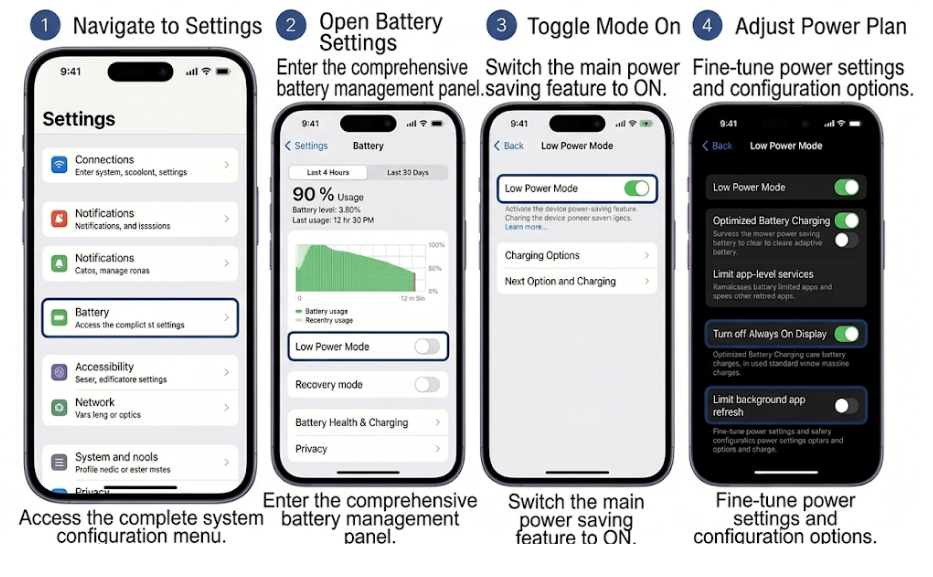
Turn on Low Power Mode
Turn on Settings > Battery > Low Power Mode when battery starts to run low.
Low Power Mode decreases background activity, automatic downloads and some visual effects, allowing your iPhone to last significantly longer on a charge.
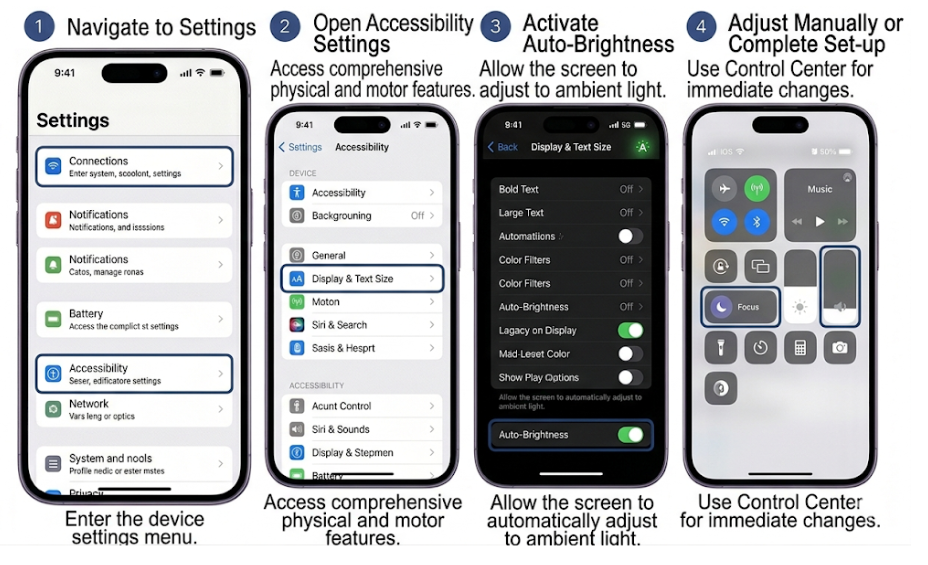
Reduce Screen Power Consumption
The display consumes a lot of battery. Turn on Settings > Accessibility > Display & Text Size > Auto-Brightness or manually decrease brightness from the Control Center. Using Dark Mode significantly improves battery life.
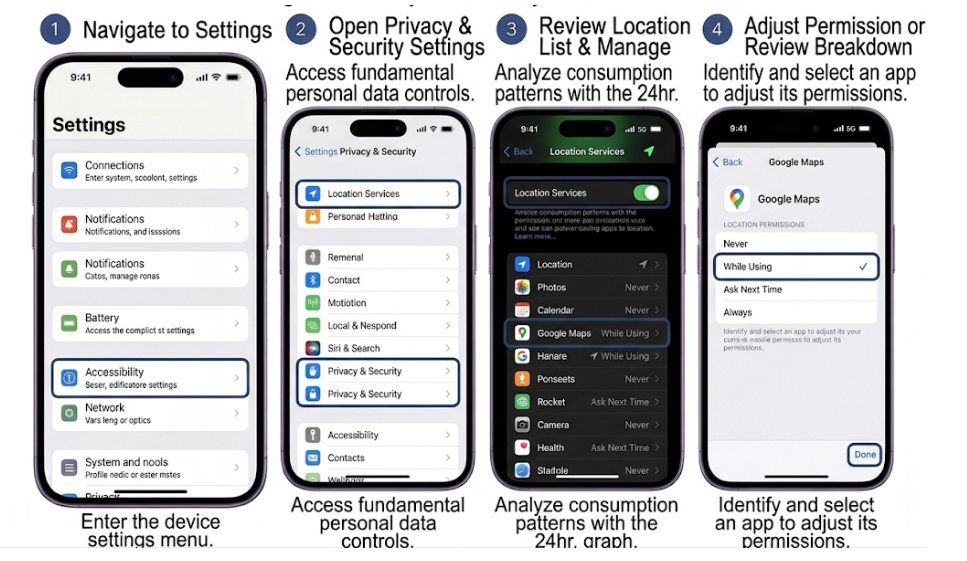
Limit Background App Refresh and Location Access
Go to Settings > General > Background App Refresh and switch off the option for applications not requiring constant updates.
Check Settings > Privacy & Security > Location Services as well and turn off those apps that don’t need it to either Never or While Using the App. Continuous tracking may be more than users are aware of, which can use up the battery.
Protect Your Battery Health
To know how to improve the battery health of my iPhone, proper charging practices are crucial.
Turn on Setting > Battery > Battery Health & Charging > Optimized Battery Charging. This feature can detect your daily charging habits and cut back on the time your battery is fully charged; over time this will help lessen battery aging.
ADVERTISEMENT
It’s also crucial to keep iOS updated as software updates may contain battery efficiency improvements.
How to Make Your Samsung Phone Battery Last Longer
Samsung has a number of built-in features which can improve the battery life by simply changing settings for it to last throughout the day.
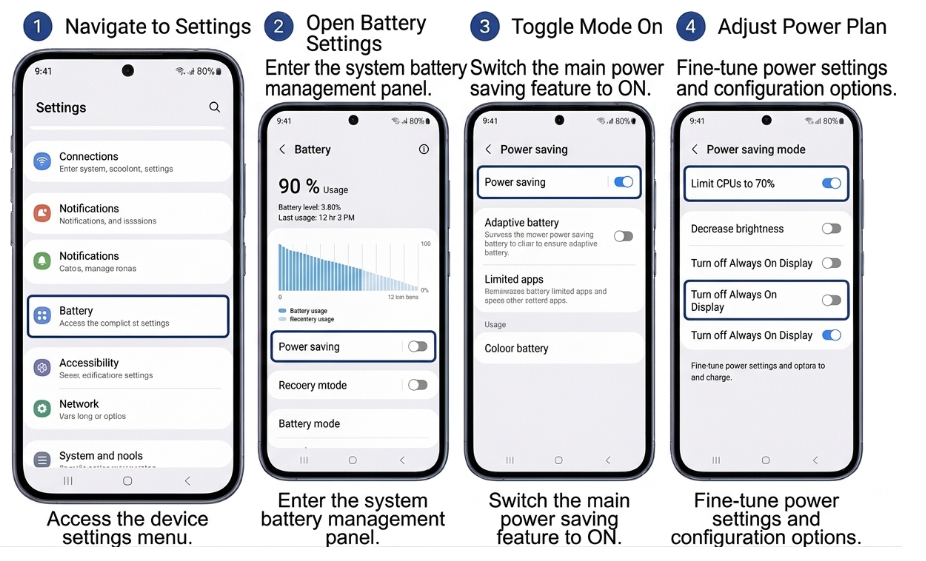
Use Power Saving Mode
Navigate to Settings > Battery > Power Saving Mode.
Power Saving Mode is the best battery saving feature in the phone. Power Saving Mode disables the running background processes, limits certain features such as CPU Usage, and Network Usage which in turns saves your battery.
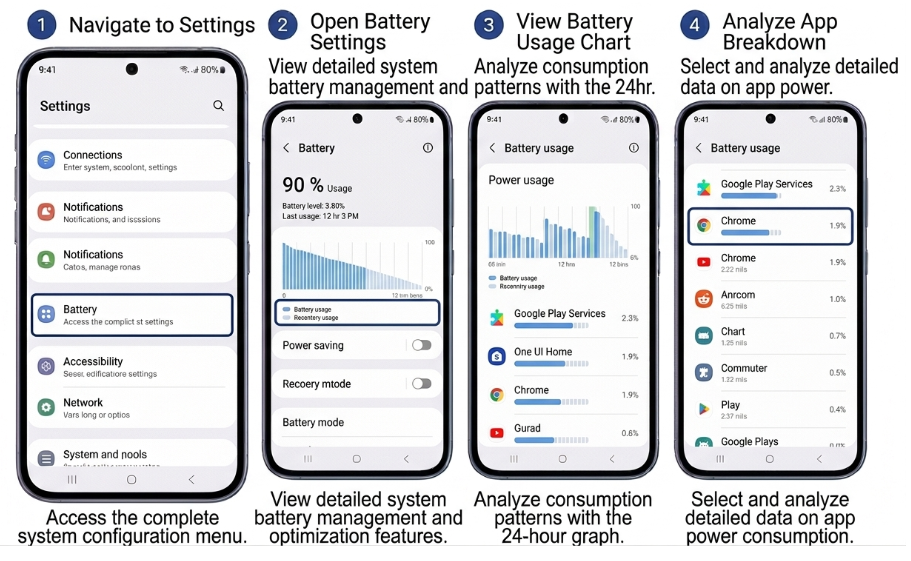
Identify Battery-Utilizing Apps
To access Settings > Battery > Battery Usage.
This screen gives you an idea of what apps and services are using the most power. You can either uninstall the applications of disable them to save battery Life.
Adjust Display Settings
To adjust screen brightness go to Settings > Display.
The display consumes quite a bit of electricity, so any change, no matter how slight, will help your battery to last longer.
Review Location Permissions
Access Settings > Location > App Permissions to help manage location permissions for apps that don’t require them.
Multiple apps constantly using location info can cause Samsung to drain the battery, the same as on iPhones.
Final Thoughts
Whether you’ve been wondering how do I maximize battery life on my iPhone, or how do I improve battery performance for a Samsung device, the answer is typically a mix of reducing the amount of time you spend on the screen, using apps wisely and setting up the battery.