


Spam calls can be annoying, intrusive, and even dangerous. Unwanted calls can add up very fast, from fake bank alerts to robocalls stating you owe money. iPhone and Android phone both have built in features which can directly help reduce spam calls.
This guide walks you through the exact steps.
How to Block Spam Calls on iPhone
People can directly block numbers from their contact list by activating the “Silence Unknown Callers”.
You can block a specific spam number using the steps below.
Block a Specific Spam Number
Go to: Phone → Recents → tap the ⓘ (Info) icon beside the number → scroll down → Block Caller → Block Contact
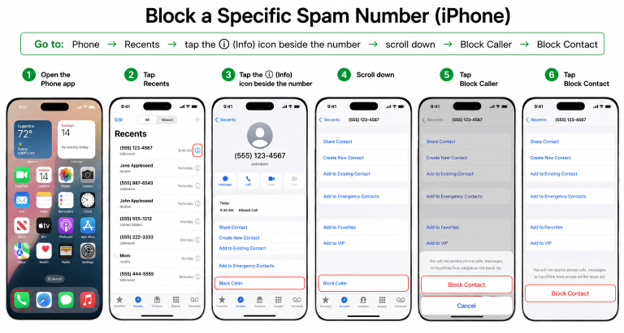
After getting blocked, Calls, messages, or Facetime will be blocked by that number.
It works best if the spammers are using the same number for a large number of calls.
Silencing Unknown Callers
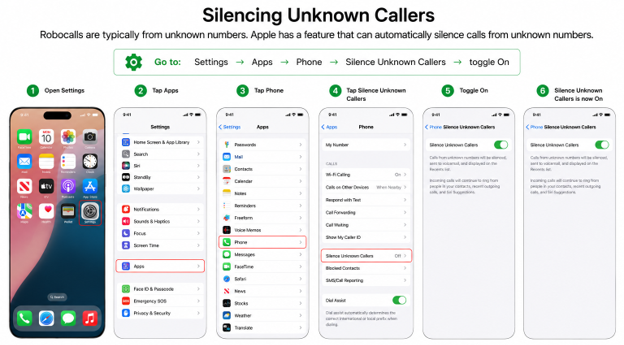
Robocalls are typically from unknown numbers. Apple has a feature that can automatically silence calls from unknown numbers.
Go to: Settings → Apps → Phone → Silence Unknown Callers → toggle On
This can also be a problem if you receive a valid call from a delivery person, a doctor’s office, or a business that you don’t have in your contacts.
How to Block Spam Calls on Android
Android phones have built-in spam prevention via the Phone app, and most of them have a high level of protection. The settings are similar; the names of the menus may differ from brand to brand.
Block a Specific Spam Number
If the number calls you continuously, manually block the number.
Go to: Recents or Call History tab, tap the phone number, More (⋮), and Block or Block/report spam.
ADVERTISEMENT
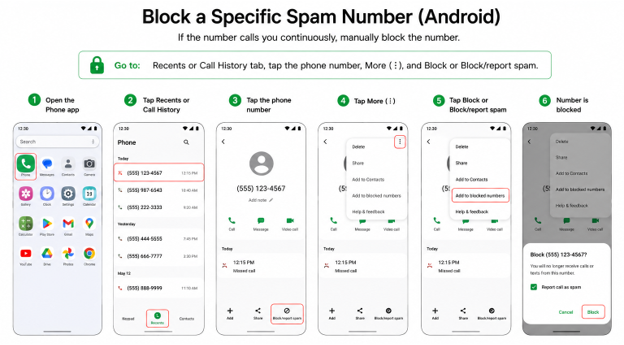
On some Android devices, by choosing Block/report spam, you will also be able to identify similar spam numbers in the future.
Turn On Caller ID and Spam Protection
A large number of Android phones with Google Phone have spam detection features that alert you to suspicious incoming calls, and those that don’t have the app for Google Phone will have other options.
Go to: Phone app → tap the three-dot menu (⋮) → Settings → Caller ID & Spam
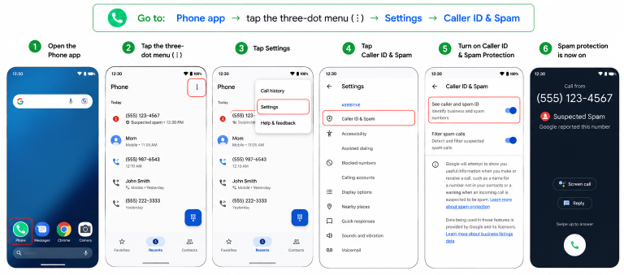
Then turn on:
- See the caller and spam ID
- Filter spam calls (if available)
Android can detect numbers that are reported as spam and can automatically block some calls from robocalls if the feature is turned on, depending on the device.
Enable Spam Protection
It is located in Caller ID and Spam Protection
Go to: On the phone app, press the three dots (⋮) → Settings → Caller ID and Spam Protection → On/Off
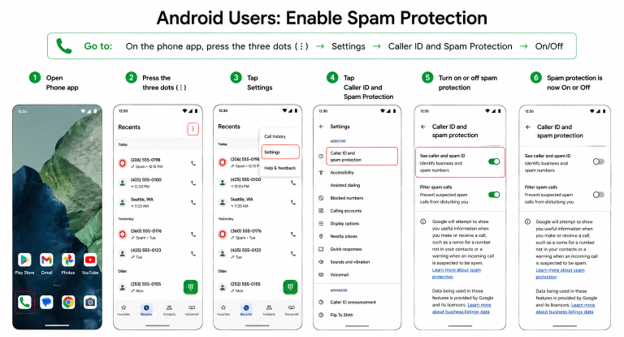
This can help you detect potential spam calls before you answer.
One Important Tip About Robocalls
The FCC and FTC say not to respond to spam calls. If you hear a recorded message when you answer, don’t press any buttons to “remove yourself” from the call list. In many instances, this means that your phone number is active, and you might receive even more robocalls.
Spam numbers are commonly blocked by blocking repeat offenders, as well as utilizing built-in spam blocking. Most users find that the changes are most noticeable right away: Silence Unknown Callers on iPhone or Caller ID & Spam Protection on Android.