
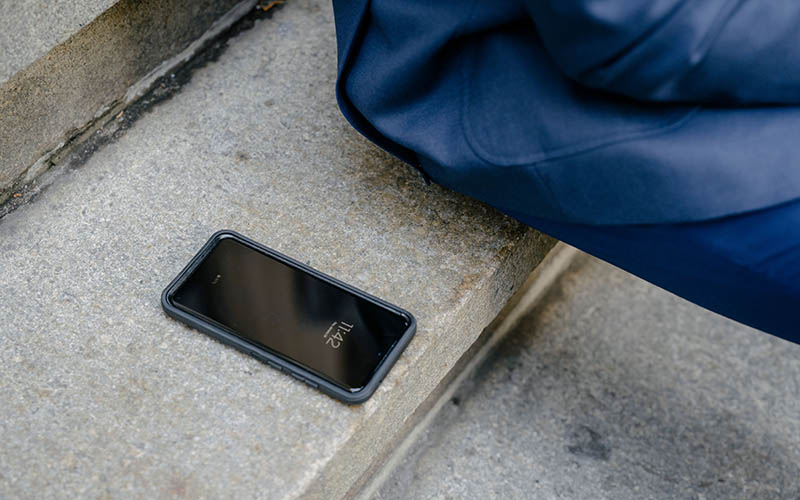

It’s bad enough to lose your phone. The real problem is that it has access to your email, banking apps, photos, passwords, and personal information. Taking prompt action can help you minimize unauthorized access and increase your likelihood of recovering the device.
This guide will cover how to make use of Apple’s and Google’s built-in functionality to locate a lost or stolen device (Find My iPhone and Find My Device), as well as other tips from Apple, Google, and the FTC.
If You Lost an iPhone
The Find My service is a feature from Apple that lets you find, lock, and remotely erase your device if necessary.
Step 1: Use Find My iPhone
Log in to the Find My app or iCloud’s Find Devices service from another Apple device or a web browser.
Choose the missing iPhone from the list of devices.
- See current location
- Play sound in locating the device if nearby
- Check ‘Mark as lost’ option.
- Wipe the device remotely
This is the quickest method to locate an iPhone and secure it at the same time.
Step 2: Turn On Lost Mode
If it is not possible to recover the device at the moment, activate the Lost Mode.
In Find My:
Tap iPhone → Mark As Lost → Continue
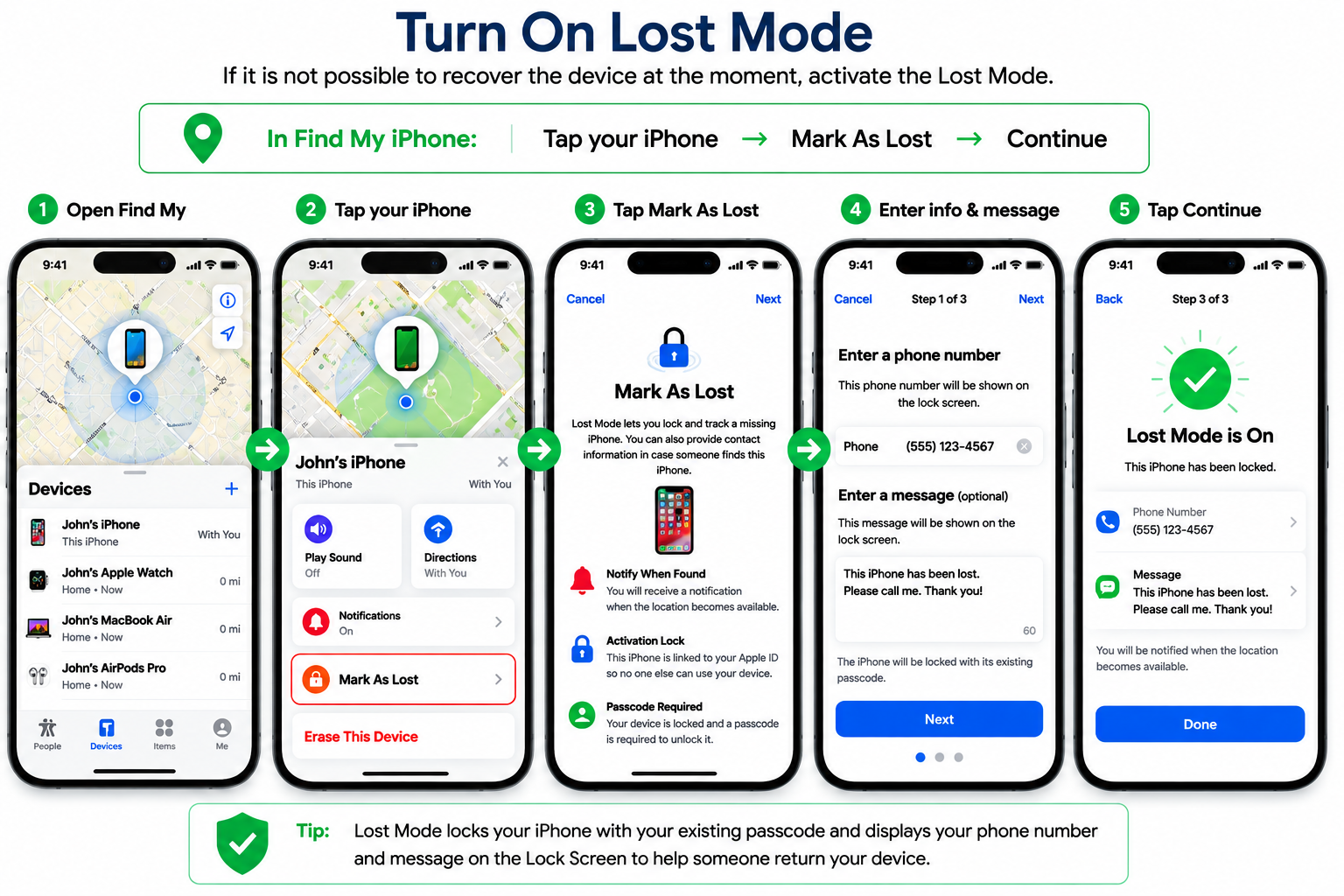
Lost Mode:
- Locks the iPhone remotely
- Turns off Apple Pay
- Show phone number and custom message on lock screen
- iPhone becomes inaccessible even if someone finds it.
Step 3: Remote Erase
In Find My iPhone:
Select your iPhone → Erase This Device
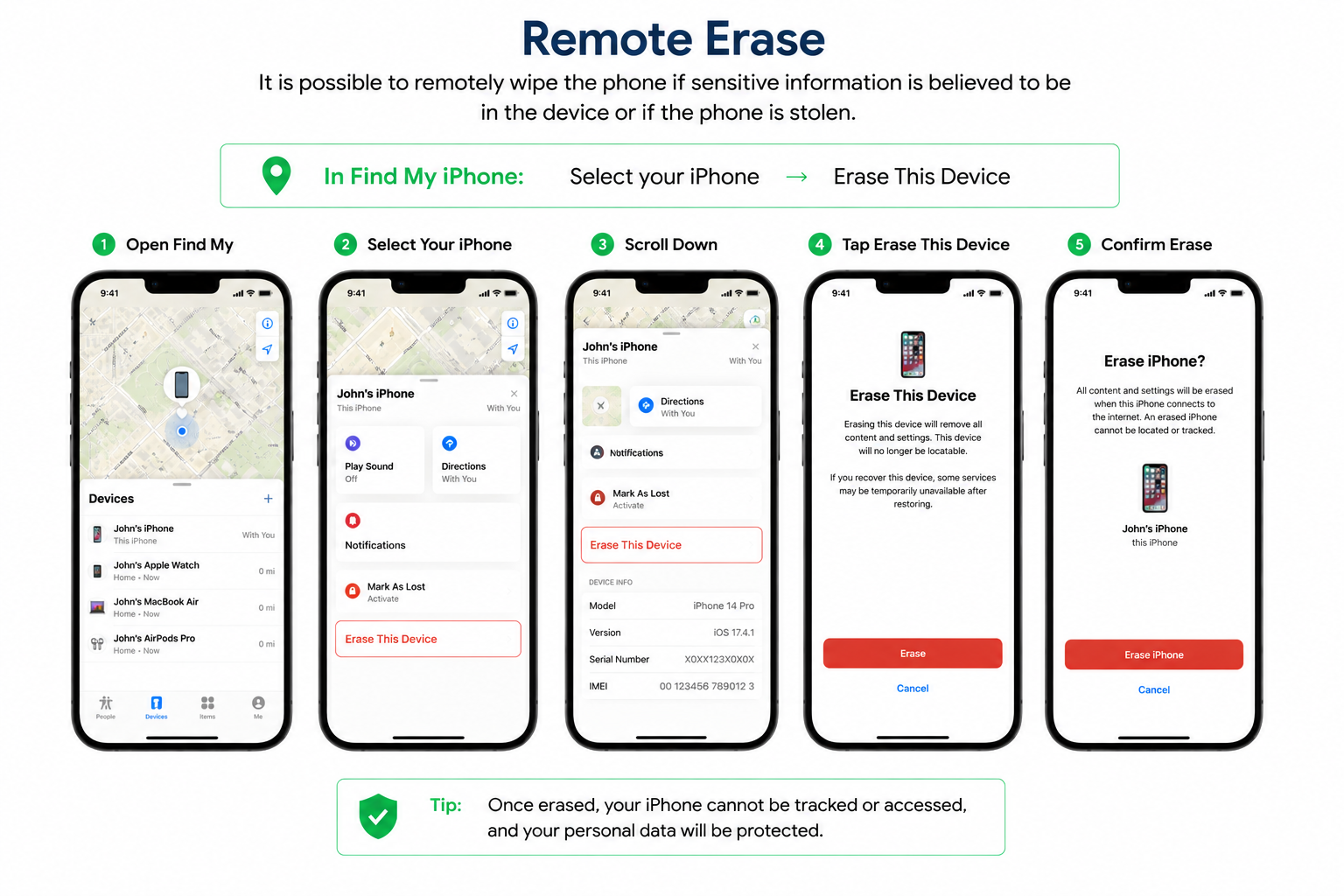
If there is no hope of recovery, you can use this feature, but it means you will lose the ability to monitor the device after you have erased it.
Step 4: Check if Stolen Device Protection is on or off
Apple’s Stolen Device Protection is available on certain iPhones, providing further protection if the device is moved away from familiar locations.
Go to:
Please go to Settings → Face ID & Passcode → Stolen Device Protection
ADVERTISEMENT
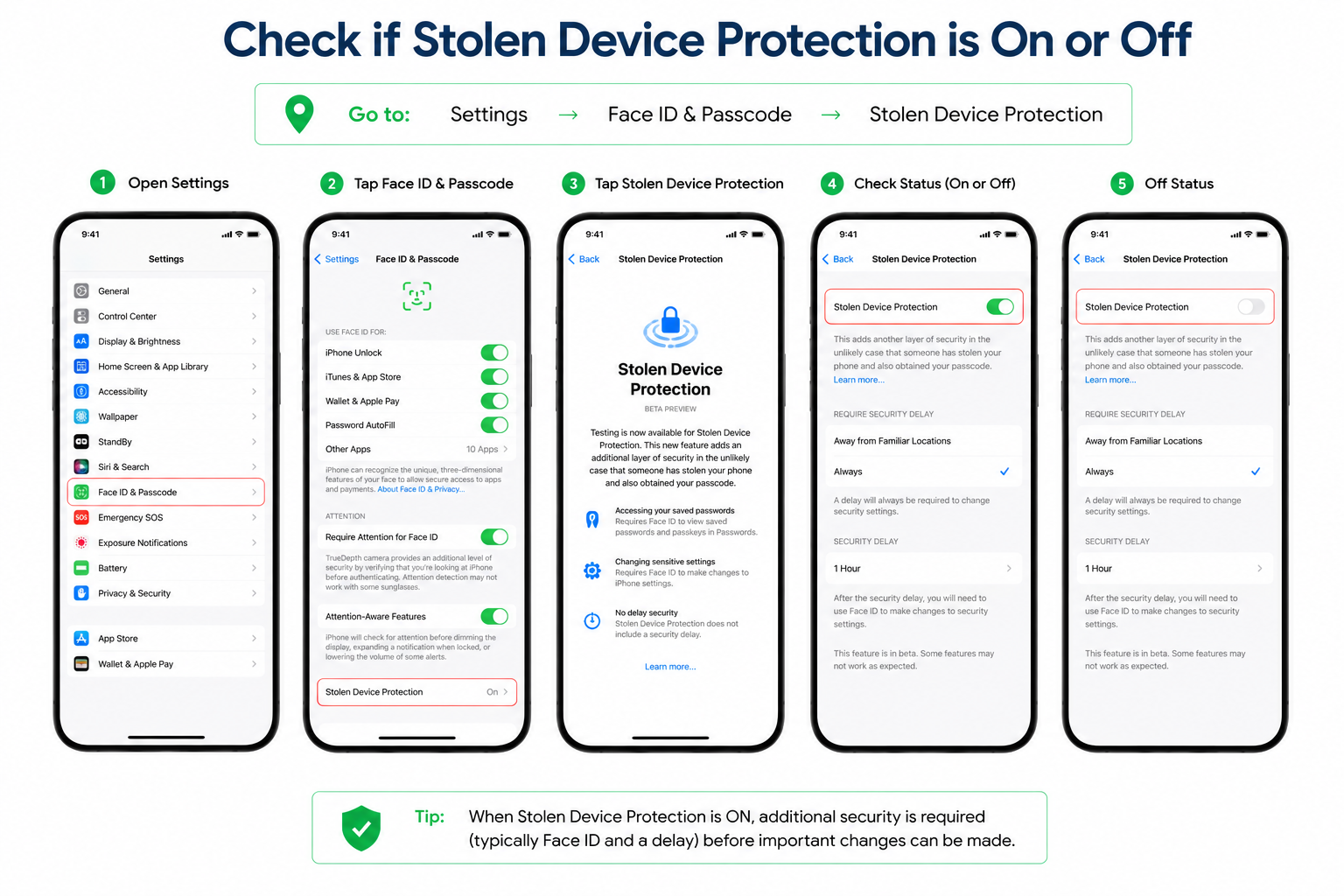
If this feature is enabled prior to the loss, it will help protect against account takeover fraud attempts.
If You Lost an Android Phone
Find My Device can be used to help in locating an android phone.
Step 1: Find My Device.
Open Find My device using a different phone with the same google account.
Click on the missing phone.
You can:
- View its location
- Play a sound
- Secure the device with a lock
- Remotely erase the device
This is the fastest method to locate Android devices and to prevent unauthorized access.
Step 2: Remotely Lock the Device
If the phone has an Internet connection, use the secure device option.
This allows you to:
- Lock the phone remotely and prevent unauthorized access until it is recovered
- Sign out of your Google account on the device
- Display a recovery message on the lock screen
This is the best methods to secure an Android cell phone after it is lost.
Step 3: Remotely Erase the Device
Select Erase Device in Find My Device if the device can’t be located or is stolen.
This clears the phone of any personal data to stop others from accessing the phone.
Contact Your Mobile Carrier
You should check with your mobile phone carrier as soon as possible, whether you’re on an iPhone or Android device.
Your carrier can:
- Suspend service temporarily
- Stop illegal calls and texts
- Help protect your account from misuse
Act Quickly
The first several hours after a phone is lost are critical. Enabling Find My or Find My Device, using Lost Mode or remote locking, and contacting your carrier can greatly reduce the risk of unauthorized access to your personal data and help you get your device back.