
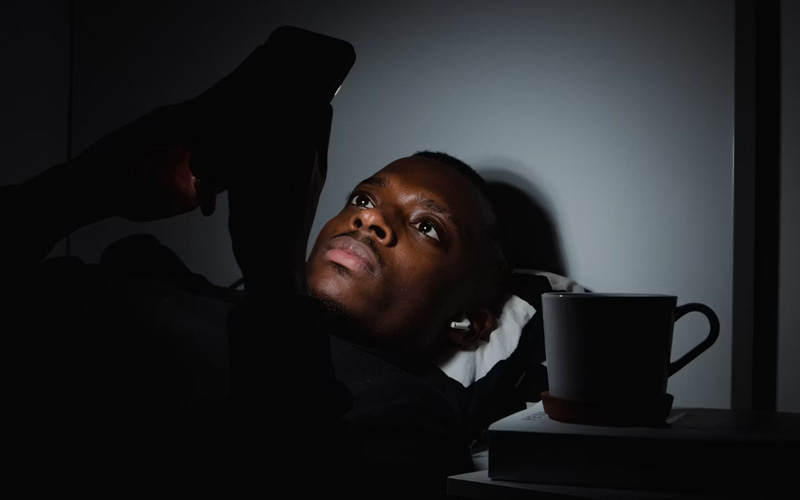

You may have noticed people with a little sticker or a sliding camera cover over the front camera. Although it may seem like an extra precaution, the concept is based on concerns about digital privacy. It’s important to note, however, that using a phone camera cover is an additional privacy measure, and it’s not a replacement for managing your privacy settings, as Handy Gear states.
The best thing you can do to preserve your privacy is to control which apps can access your camera and microphone.
Does Covering the Camera Actually Help?
A physical camera cover blocks the front camera’s view, preventing it from capturing visible images while the cover is closed. Some people use one for peace of mind, particularly if their phone is on a desk or a bedside table.
Many security and privacy experts recommend focusing on app permissions first, since a camera cover alone does not protect against unnecessary app access.
Managing app permissions provides greater privacy protection than relying on a camera cover alone.
Review Your Camera Permissions
The first step is to see what apps are able to access your camera.
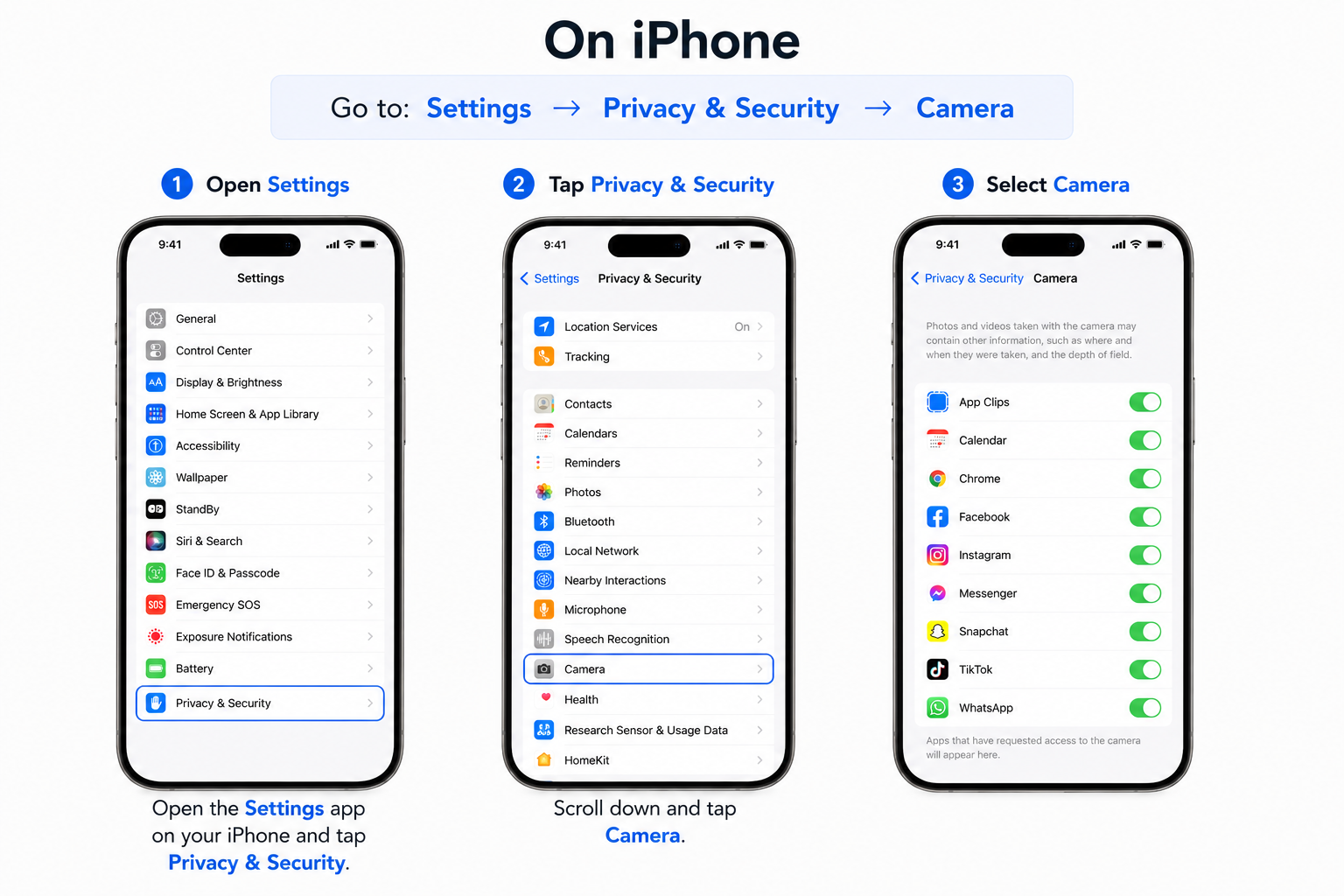
On iPhone
Go to:
Settings → Privacy & Security → Camera
You’ll see a list of apps that have requested camera access.
Remove camera access for any app that doesn’t legitimately need it.
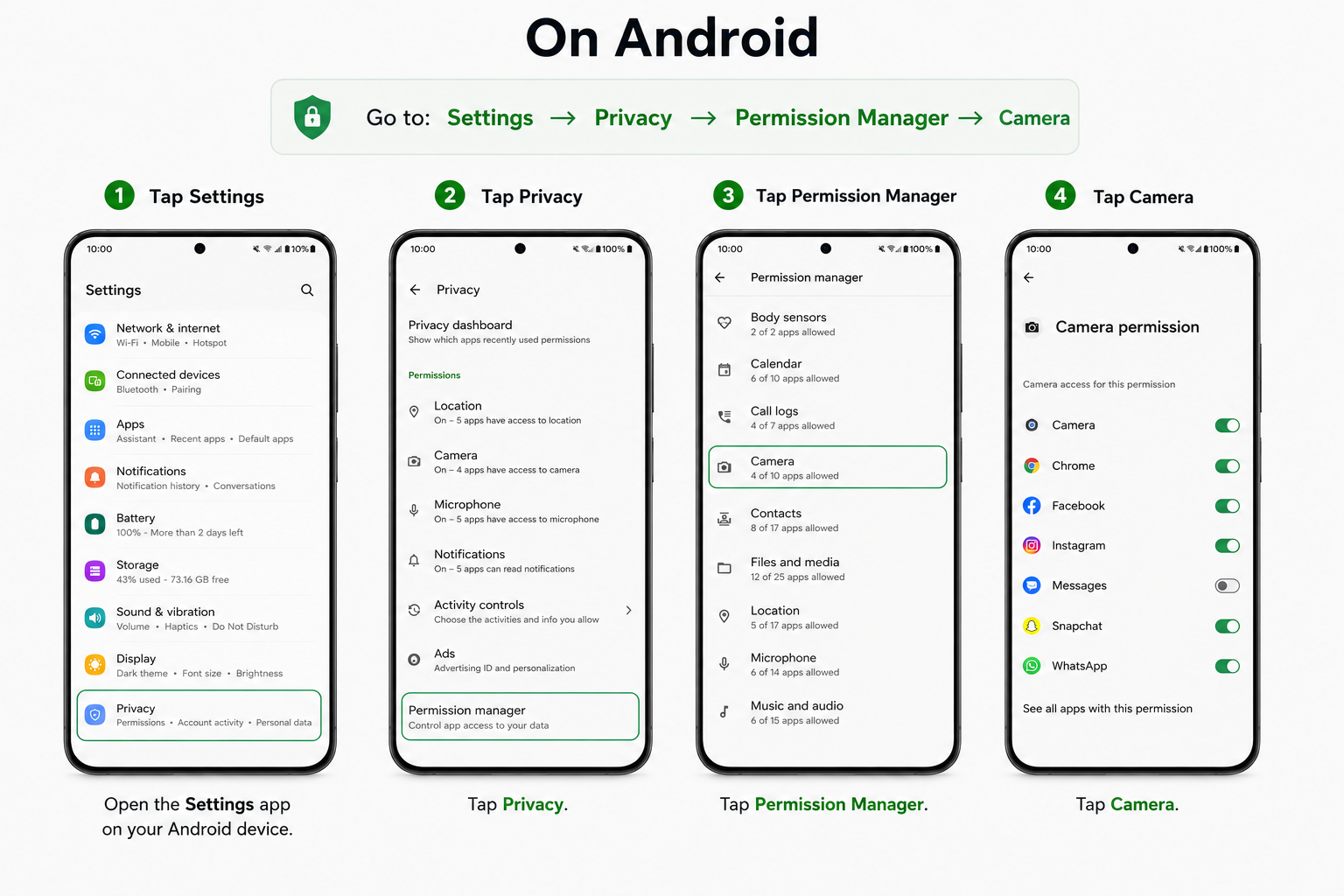
On Android
Go to:
Settings → Privacy → Permission Manager → Camera
Menu names may be a bit different depending on the Android device being used.
ADVERTISEMENT
Carefully check each app and revoke camera permission if needed.
Watch for the Camera and Microphone Indicators
Many smartphones have indicators of what devices are on and are working in the background, giving a clue that the camera or microphone is being used.
On iPhone:
- Green dot: The camera is in use (or the camera and microphone are in use).
- Orange dot: The microphone is being used.
Most modern Android phones (particularly Android 12 and later) display similar privacy indicators when an app accesses the camera or microphone.
If you see one of these signs when you are not using an app that uses them, see which app is running and check permissions for the app.
Don’t Forget Microphone Access
Some apps require microphone access for voice messaging or video calling. Others may not need it at all.
Microphone permissions should also be checked the same way as camera permissions, and revoke microphone access for apps that don’t need it.
Having camera and microphone permissions updated allows you to have better control of what your phone can access.
Keep Apps and Your Phone Updated
Security updates may contain security fixes for newly identified system vulnerabilities.
Once the user updates all installed apps in a timely manner helps minimize security risks and provides the latest features that can more effectively protect your privacy and your device.
A Camera Cover Is Optional—Permission Control Is Essential
There’s nothing wrong with covering up your phone’s camera if you feel more comfortable doing so. Keep in mind it can only supplement, not replace, good privacy practices.
The best way to protect your privacy is to review camera and microphone permissions regularly, watch for the green and orange privacy indicators, and keep your phone updated. These steps generally provide more effective privacy protection than relying on a camera cover alone.