
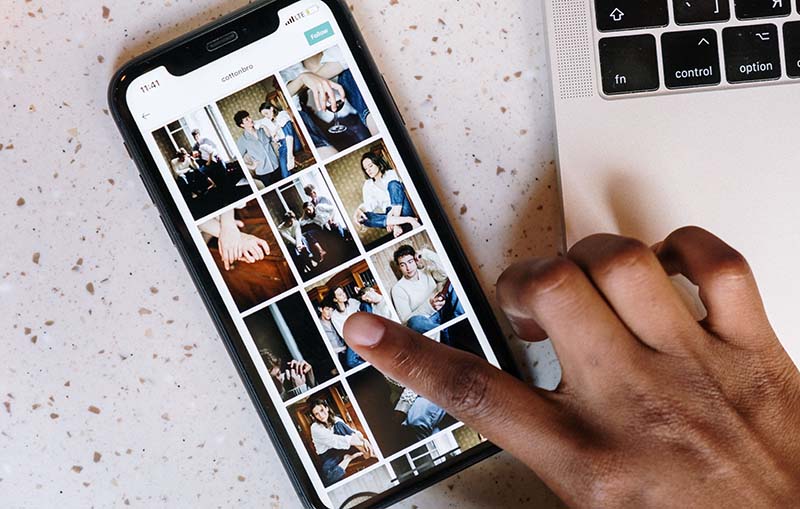

Over time, photos or important documents can be lost more easily than you think. Important files can suddenly vanish if your phone gets damaged, you delete them by mistake, a software glitch, your phone gets lost. The simplest way to safeguard yourself is to have automatic backups.
This guide explains how to create a phone backup both on iPhone and Android phones, what will be backed up, and how to ensure it is being backed up properly.
Why Backing Up Your Files Matters
A backup will make a copy of your data in cloud storage, which may be restored later if something happens to your device.
The most important files to be safeguarded are:
- Photos and videos
- Personal documents
- Contacts
- Notes
- Device settings
- App data
With automatic backups turned on, you won’t have to remember to back up your files.
How to Set Up a Picture Backup for iPhone
Two backup options from Apple are available: iCloud Backup and iCloud Photos.
Turn On iCloud Backup
Go to:
Settings → Your Profile → iCloud → iCloud Backup
Then turn on:
Back Up This iPhone
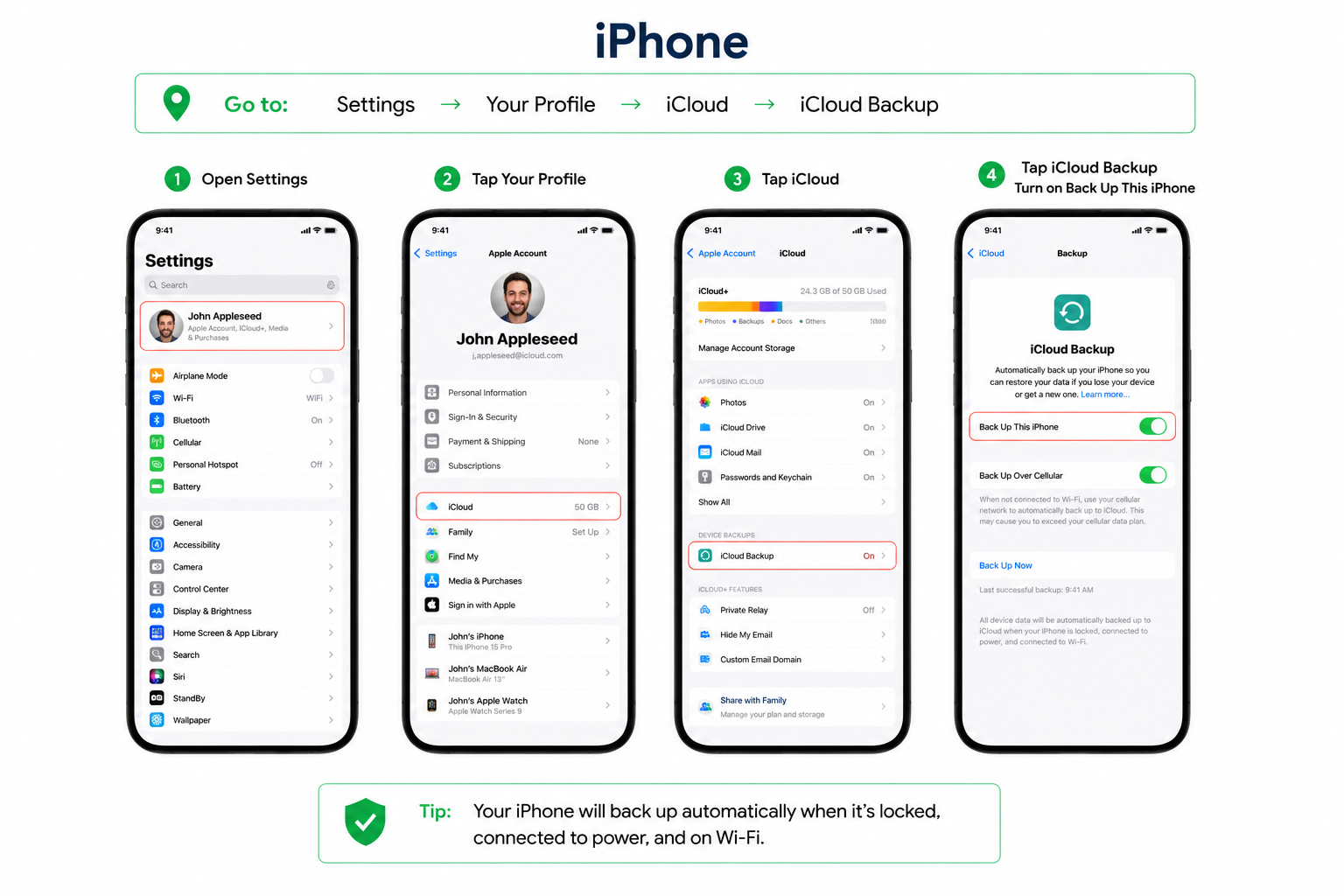
If you have this turned on, your iPhone will automatically create a backup whenever it’s connected to Wi-Fi, plugged into a charger, and locked.
Turn On iCloud Photos
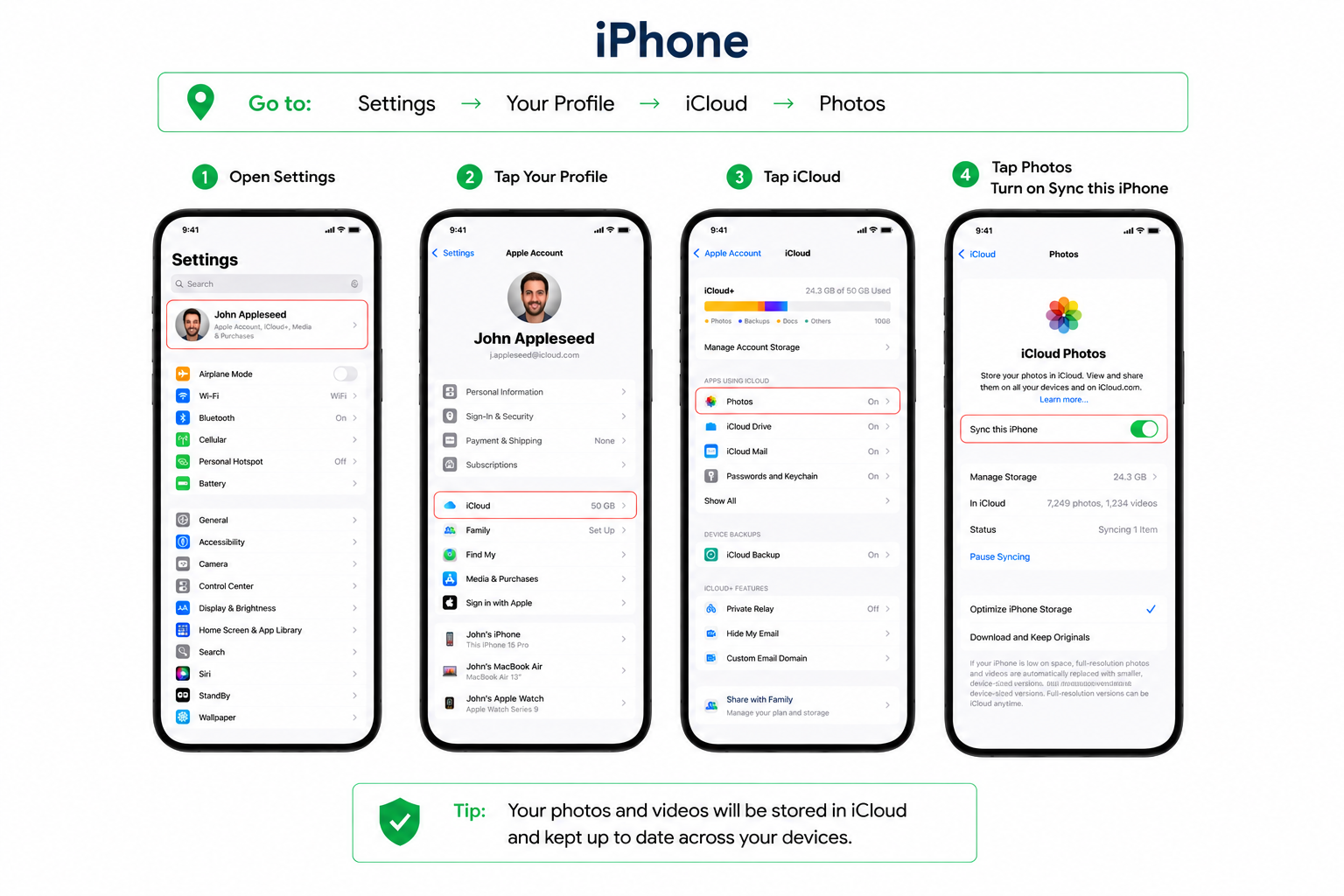
iCloud Photos should also be turned on if you want your photos and videos stored in iCloud and available across devices.
Go to:
Settings → Your Profile → iCloud → Photos
Then turn on:
Sync this iPhone
What Gets Backed Up?
iCloud Backup can include:
- Device settings
- App data
- Messages
- Home Screen layout
- Certain account information
iCloud Photos keeps your photo and video library in iCloud. All of these features, taken together, offer a more comprehensive backup solution.
How to Verify Your iPhone Backup Worked
Go to:
Settings → Your Profile → iCloud → iCloud Backup
Look for the field marked:
Last Successful Backup
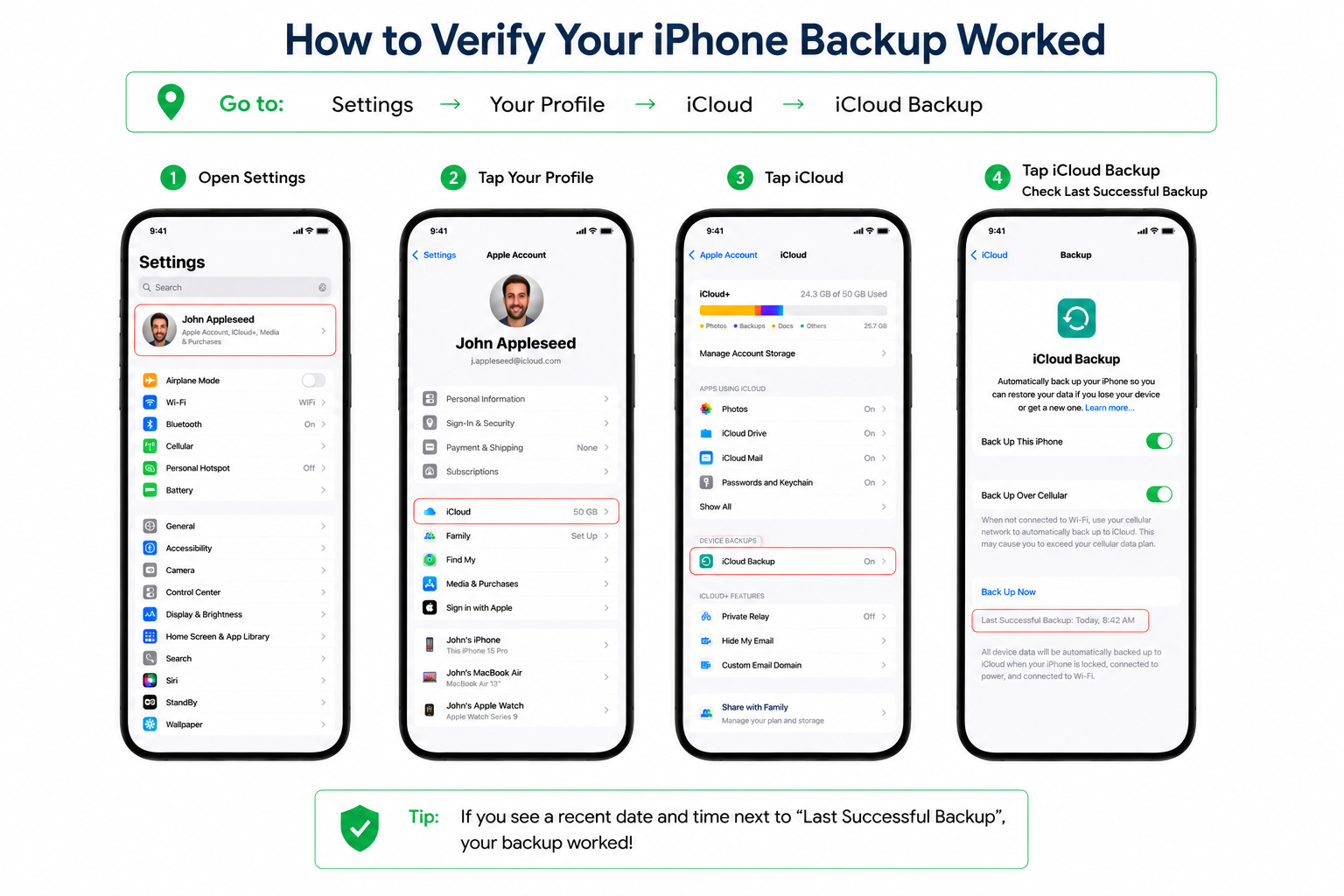
To check photos, launch the Photos app and ensure there are no warnings and the sync is complete.
ADVERTISEMENT
How to Set Up a Photo Backup for Android
For Android users, photos can be backed up automatically via Google Photos, and important documents can be stored in Google Drive.
Turn On Google Photos Backup
Go to:
Google Photos → Profile → Photo Settings → Backup
Then turn:
Backup On
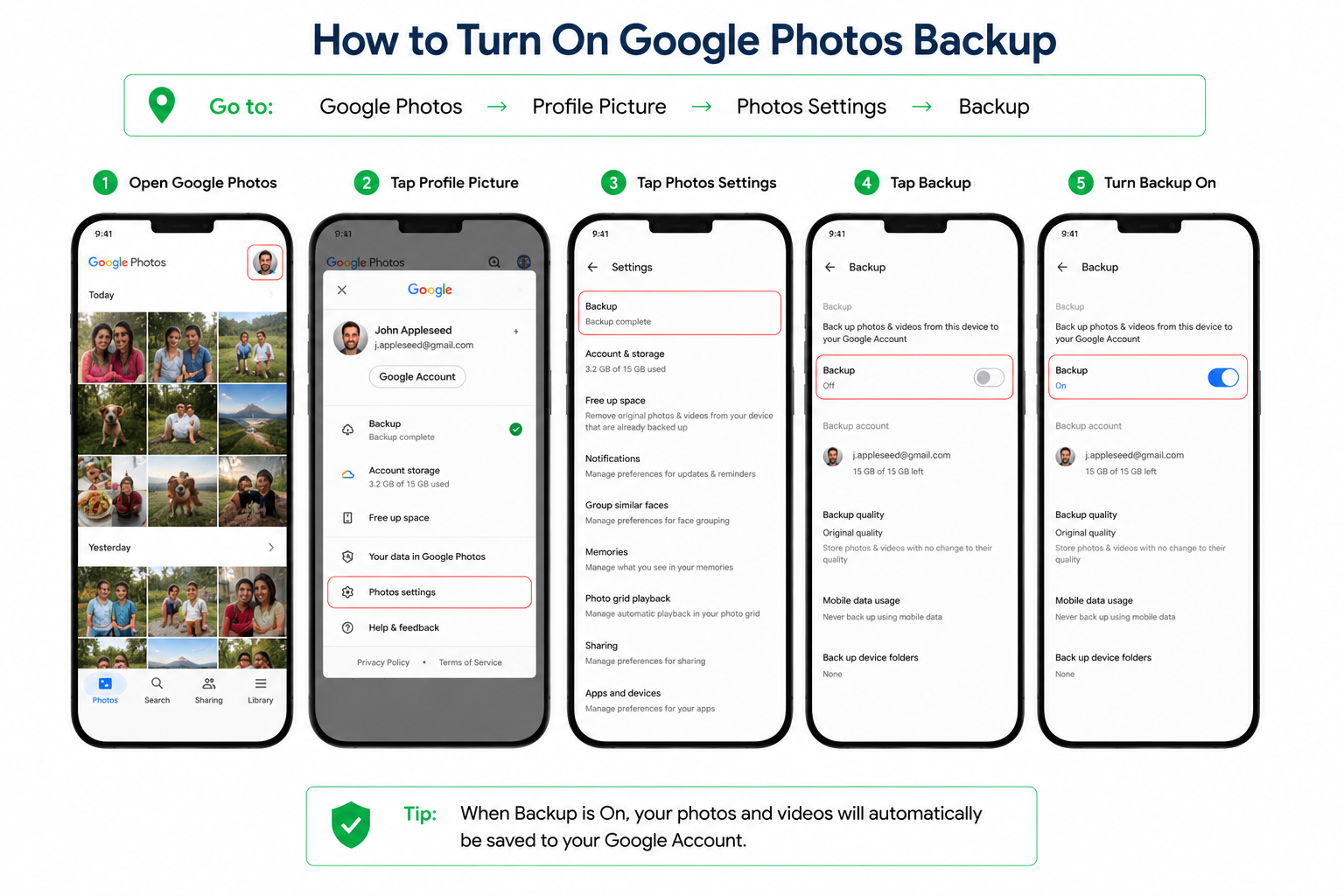
Photos and videos will upload to your Google Account automatically when enabled.
This is probably one of the simplest ways to create a dependable photo backup without having to copy files manually.
Back Up Important Documents
Use Google Drive to store documents like PDFs, spreadsheets, and personal records.
Open:
Google Drive → + (New) → Upload
Choose the files to be stored.
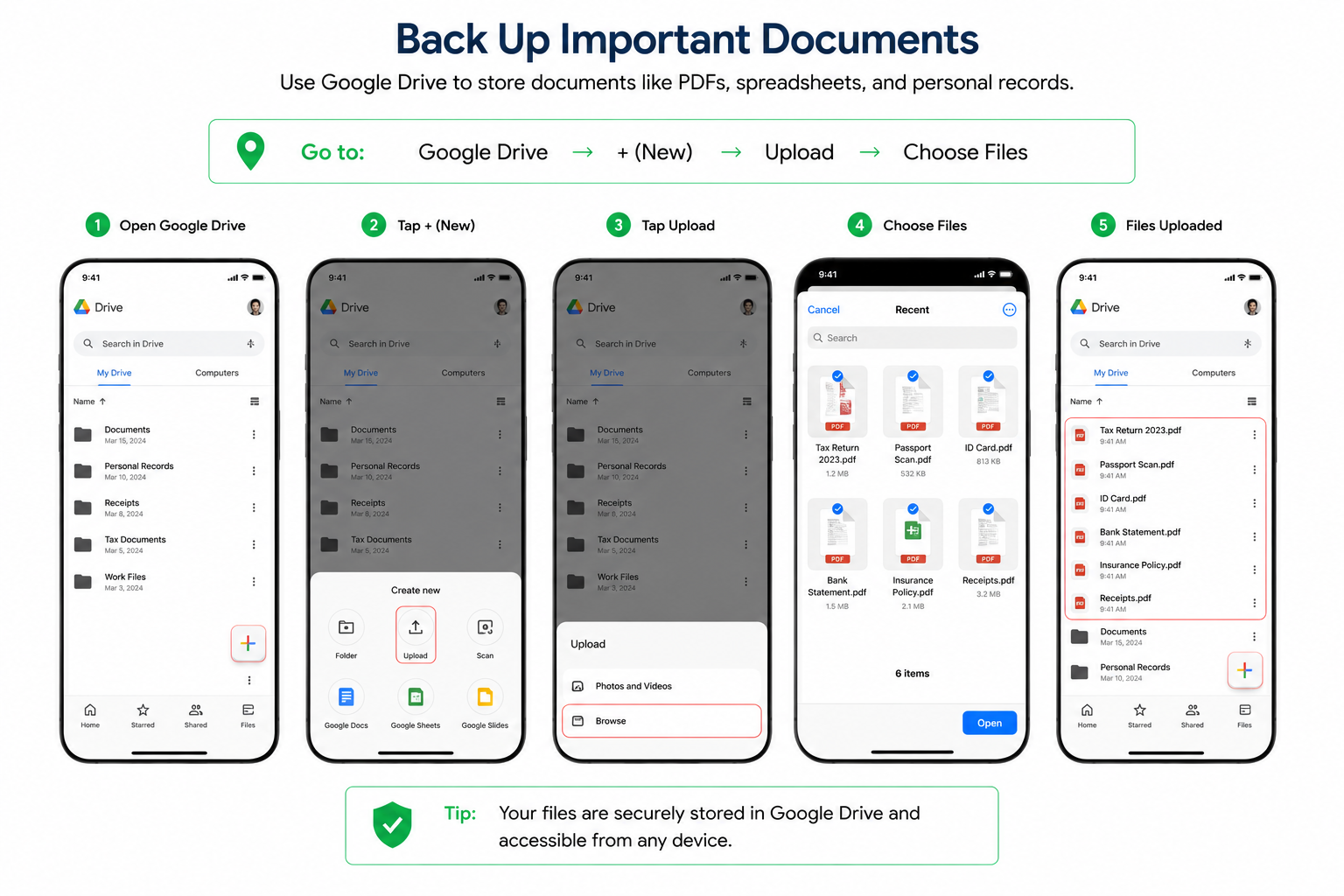
These documents are also stored in your Google Account through Google Drive, which you can access on other devices.
What Backs Up?
When backup is enabled, Google Photos automatically saves:
- Photos
- Videos
Google Drive can store:
- Documents
- PDFs
- Spreadsheets
- Presentations
- Other personal files
How to Check if your Android Backup is successful
Open:
Google Photos –> Profile Picture
You should receive a message like this:
Backup Complete
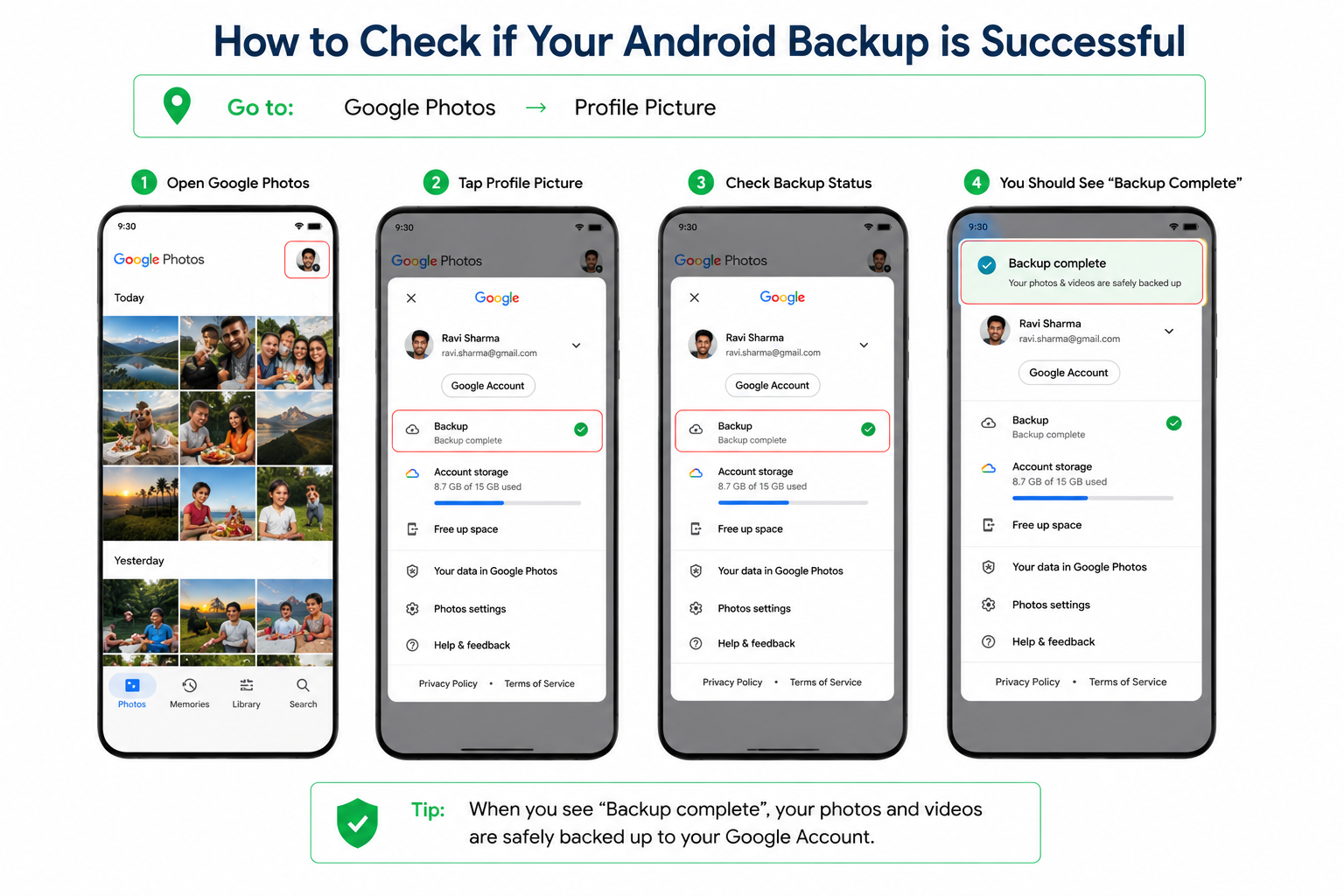
Another way to check is to log into photos.google.com from a different device to see if your photos have been uploaded to Google Photos.
Check Your Available Storage
If you are using any backup services, ensure you have sufficient cloud storage.
Both Apple and Google offer free storage in the cloud, albeit in small quantities. When the storage space is full, it may prevent new photos and files from being backed up until more storage space is available.
Make Backup Automatic
The ideal backup system operates without having to be monitored all the time. You can automatically back up your photos and important documents, minimizing the possibility of losing files that you can’t replace. It only takes a few minutes to get a good phone photo backup up and running today, to save years of memories and important records tomorrow.