

Many apps can access information such as your location, contacts, microphone, camera, photos, and even details about how you use the app. Fortunately, both the iPhone and Android devices enable you to review and manage much of this sharing.
Location Data
One of the most sensitive kinds of information that your phone can share is its location. Apps can use location data to help with directions, local weather, and location-based services, as well as nearby recommendations.
But certain apps could ask for the location data even if it is not required for the main function.
How to Control Location Access on iPhone
Go to:
Settings → Privacy & Security → Location Services
Choose an app and then select:
- Never
- Ask Next Time
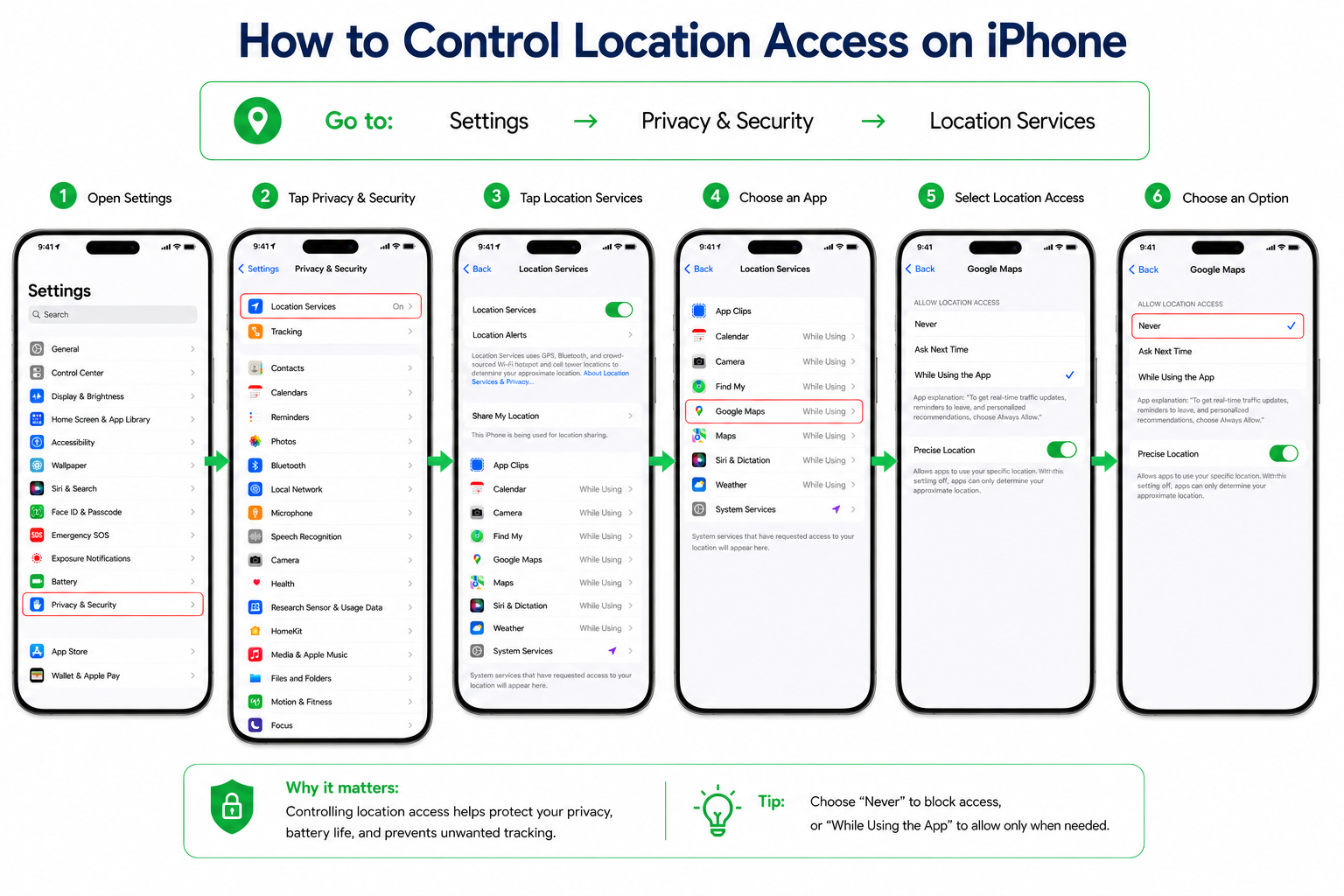
There’s also the option to turn off Precise Location for apps that only require a general location.
How to Control Location Access on Android
Go to:
Settings → Location → App Permissions
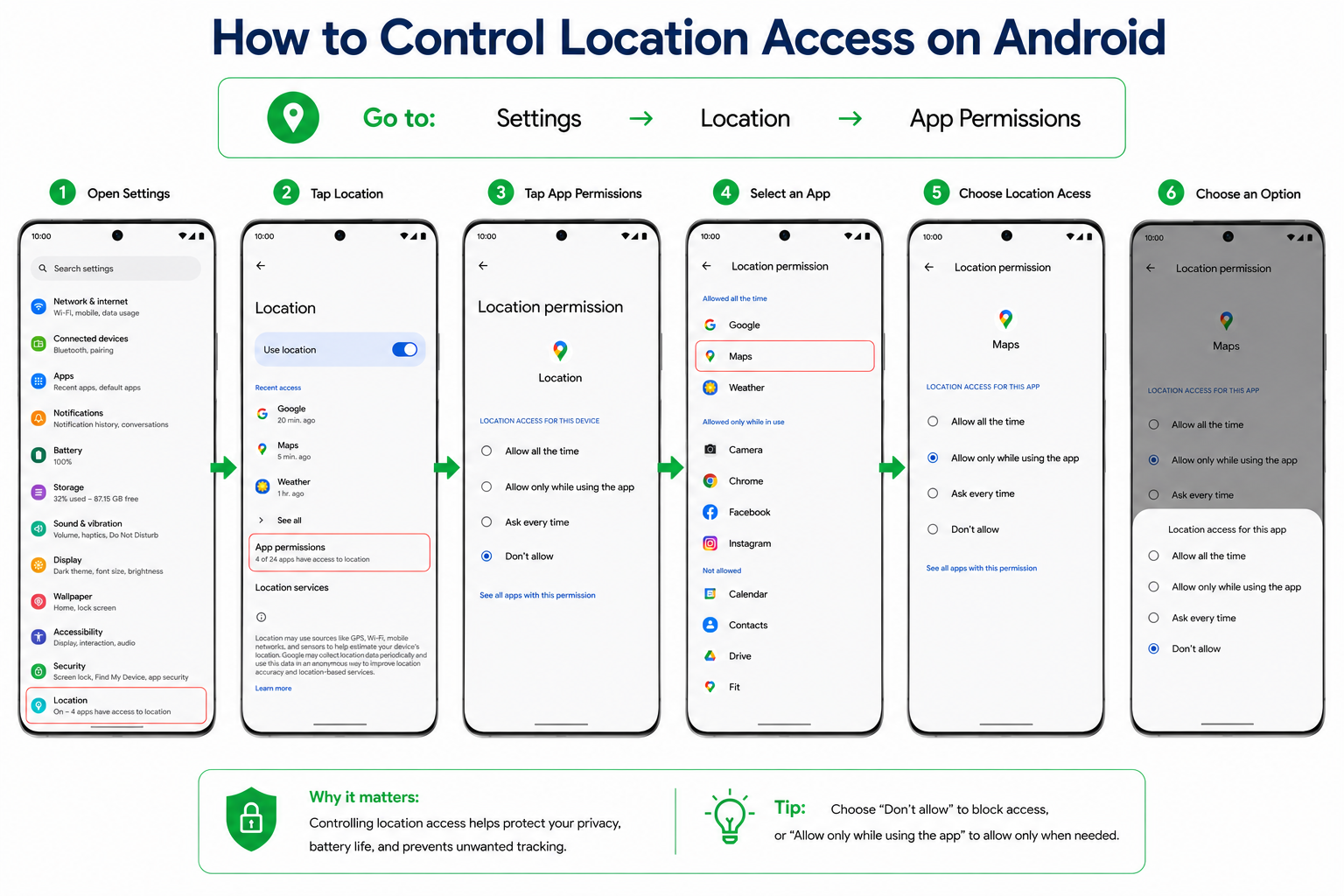
While using the App works well for most apps in terms of functionality and privacy.
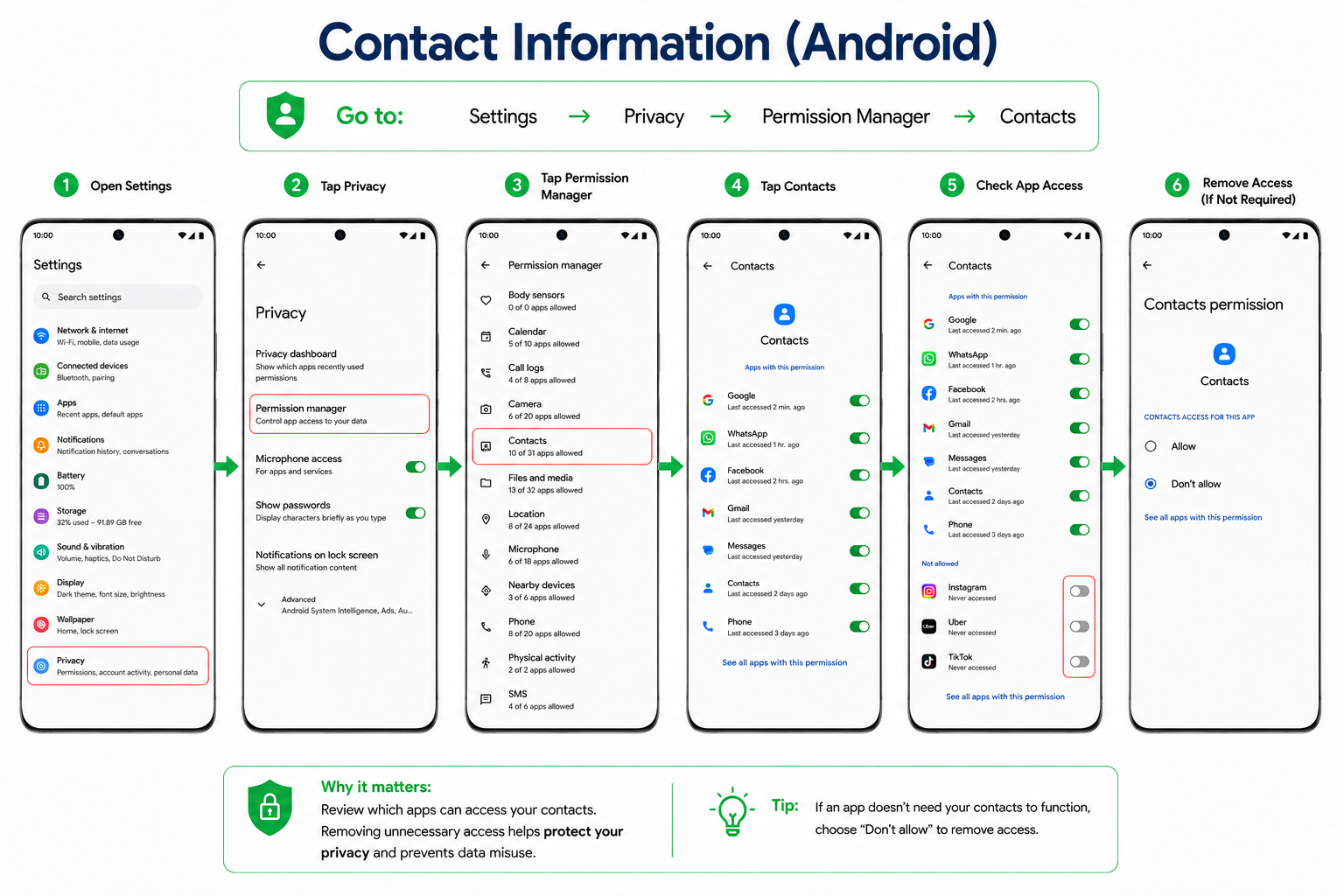
Contact Information
The apps ask for your contacts to allow you to connect to your friends or to invite people to join the service.
This permission could let an application access your names, phone numbers, emails, and other data in your contacts.
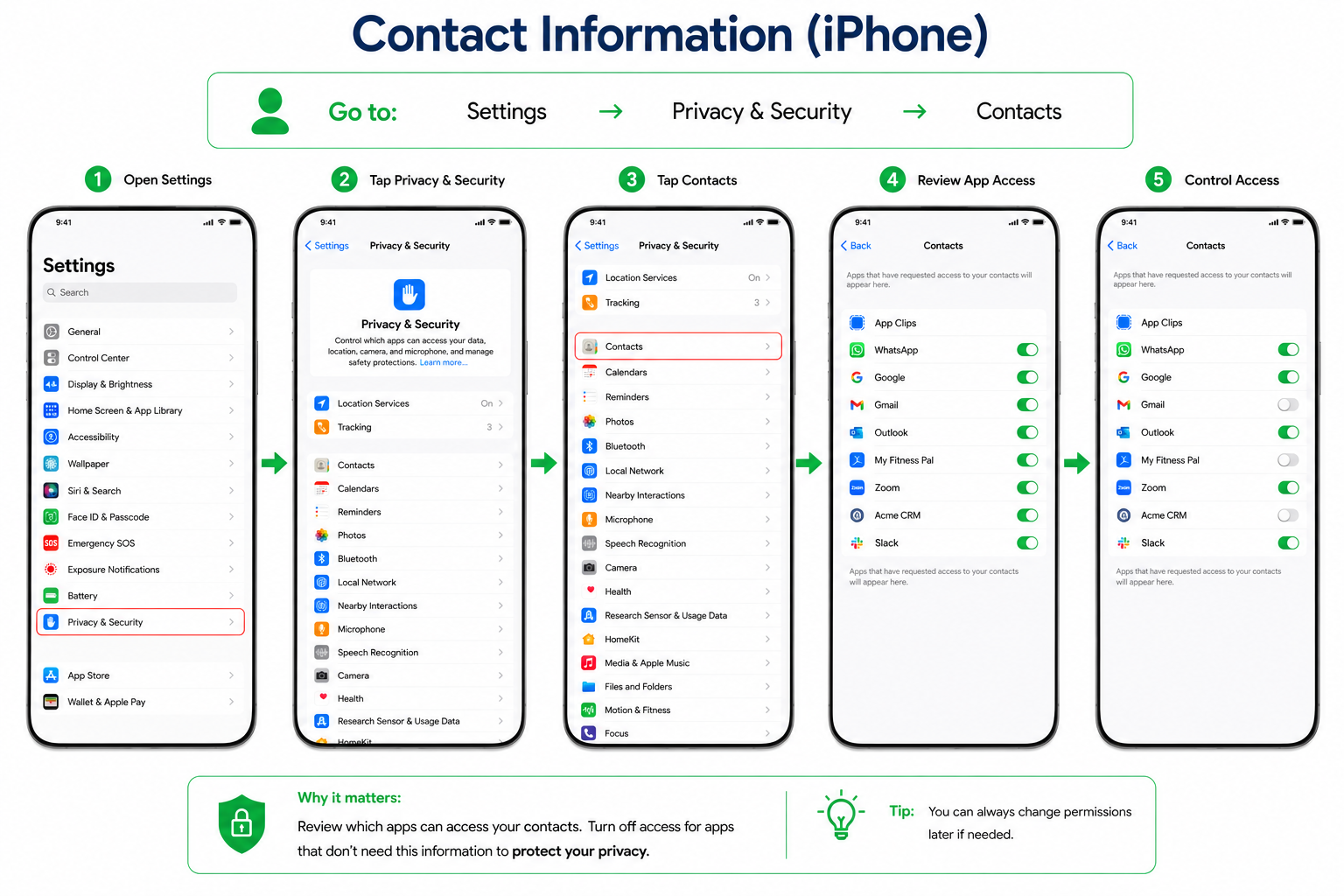
iPhone
Go to:
Settings → Privacy & Security → Contacts
Android
Go to:
Settings → Privacy → Permission Manager → Contacts
Check which apps have access and delete permissions that are not required.
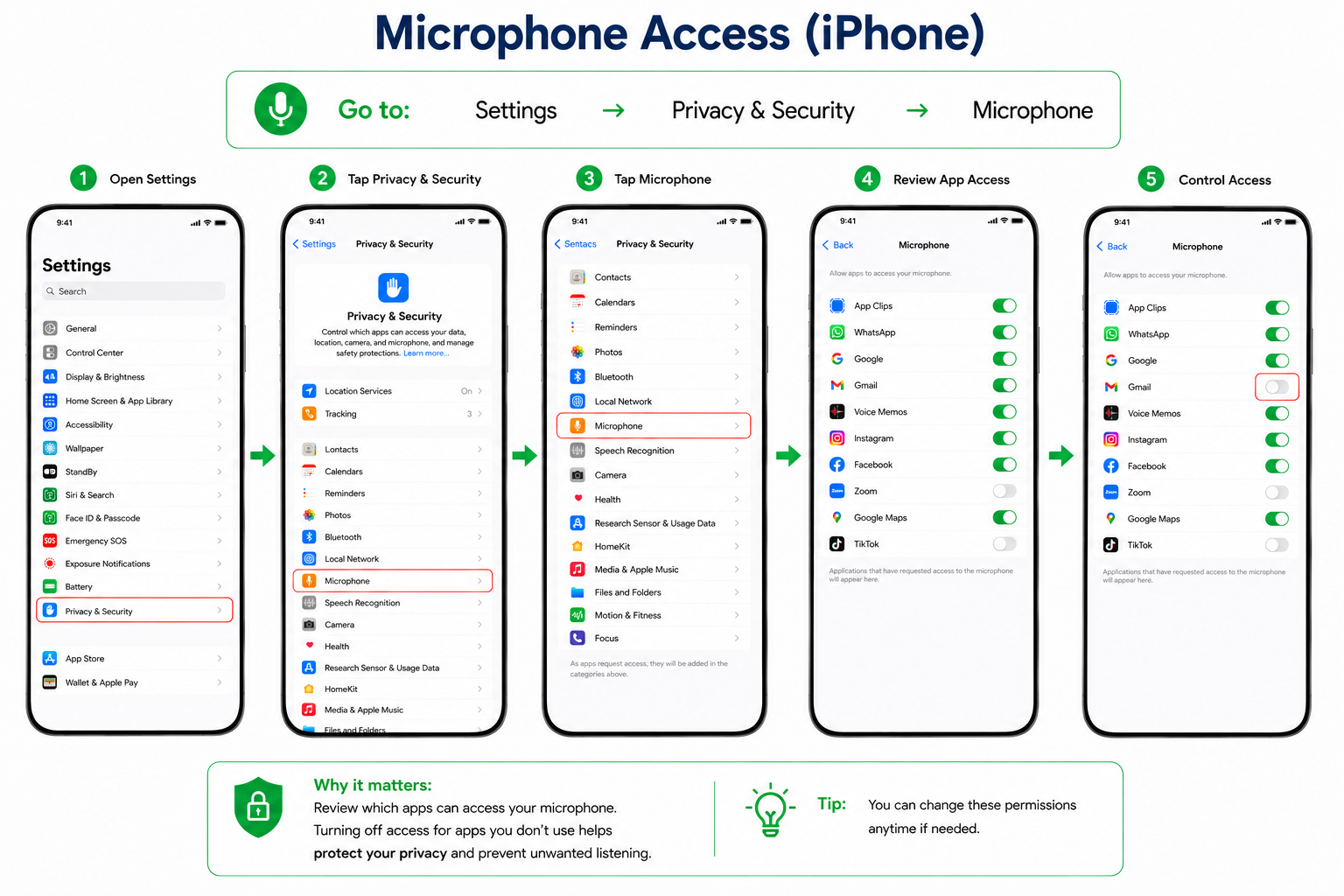
Microphone Access
A microphone will be required for voice messaging, video calls, and voice assistants. Not all apps require permission to record audio, though.
iPhone
Go to:
Settings → Privacy & security → Microphone.
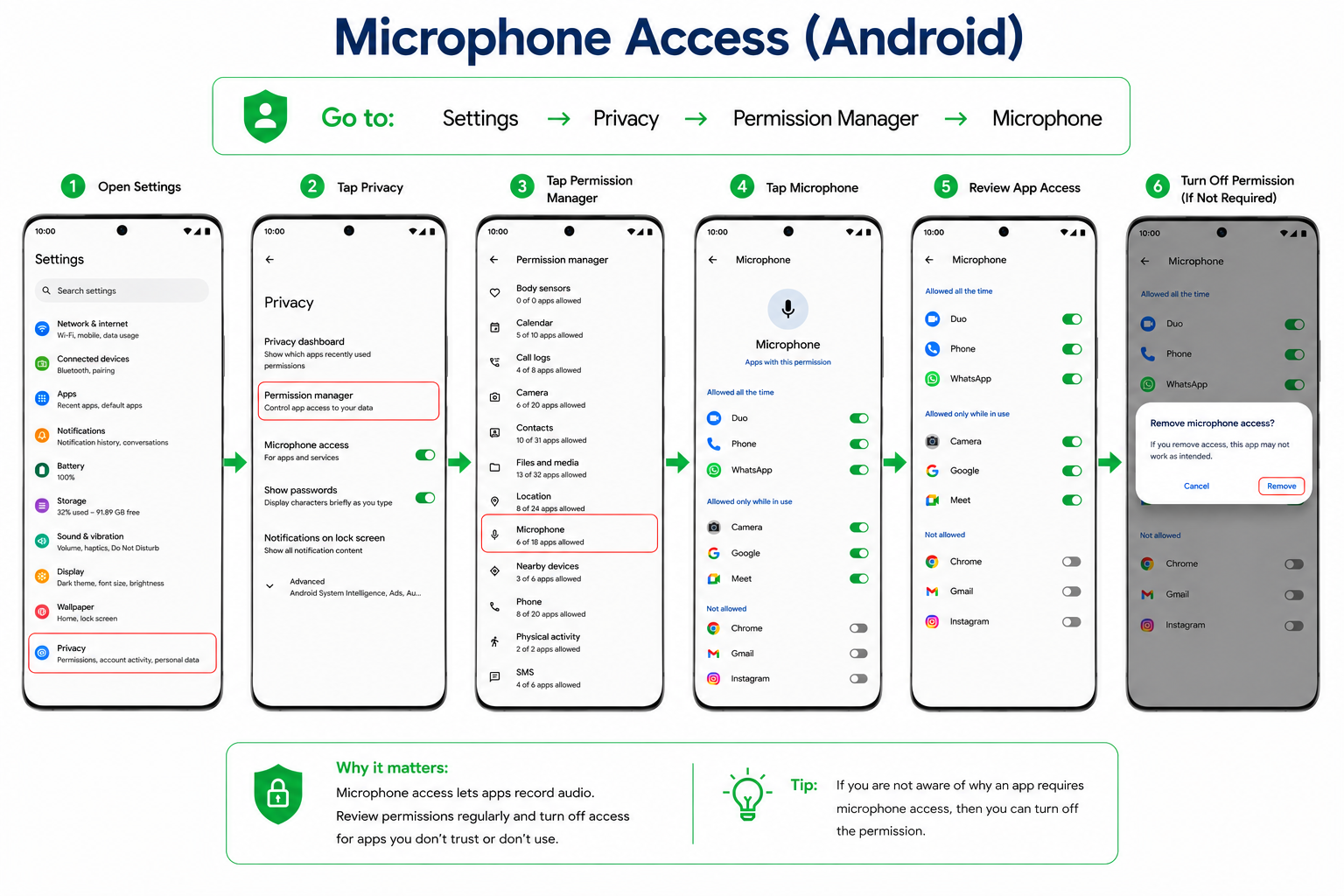
Android
Go to:
Settings → Privacy → Permission Manager → Microphone
If you are not aware of why an app requires microphone access, then you can turn off the permission.
ADVERTISEMENT
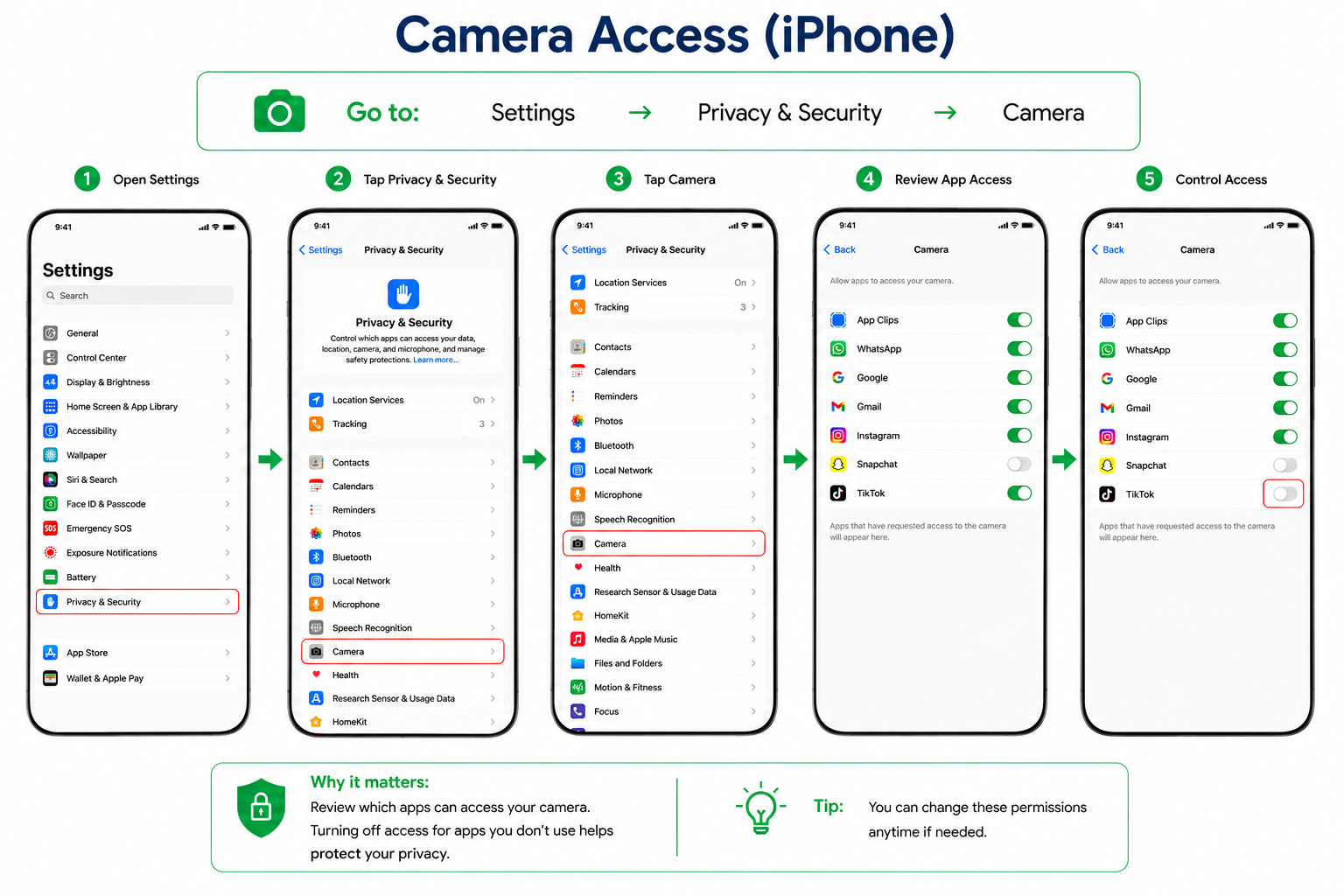
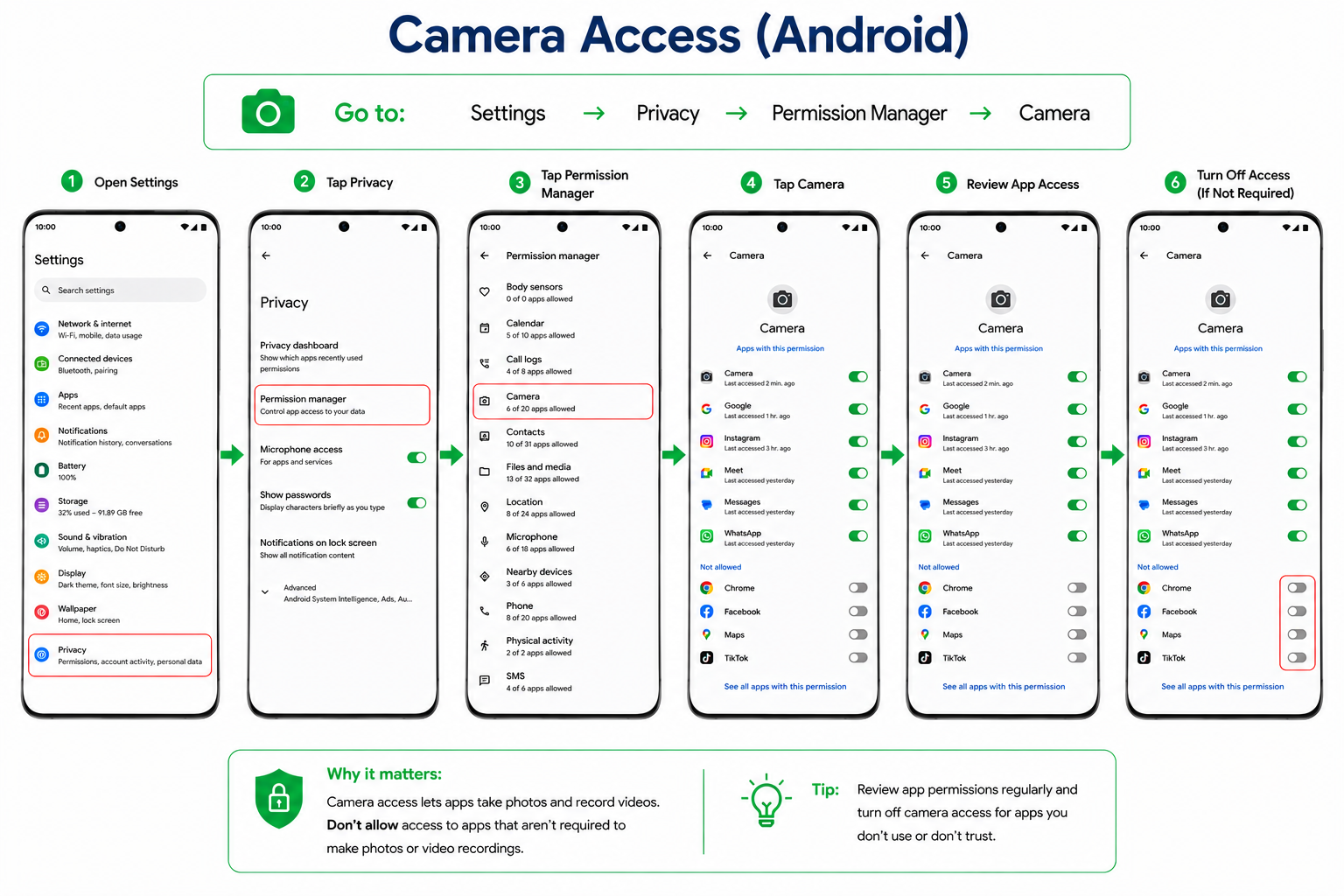
Camera Access
Many applications, such as social media, messaging, and video conferencing platforms, require access to your camera.
It’s good to review which apps are permitted right now, however.
iPhone
Go to:
Settings → Privacy & Security → Camera
Android
Go to:
Settings → Privacy → Permission Manager → Camera
Don’t allow access to apps that aren’t required to make photos or video recordings.
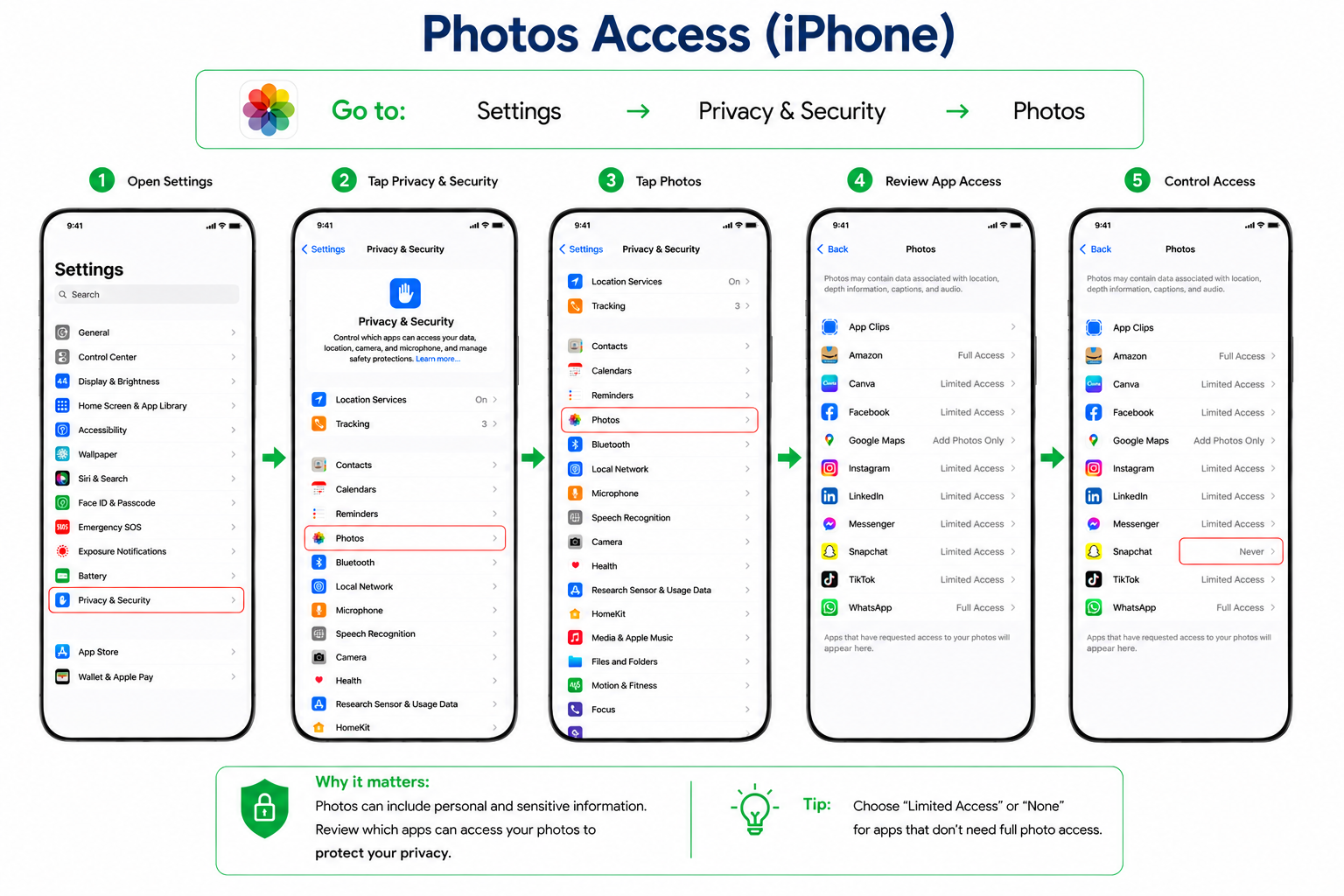
Photos and Files
Some apps ask for access to your pictures or files.
Be mindful before granting access, whether the application requires access to all your library files or only specific ones.
iPhone
Settings → Privacy and Security → Photo
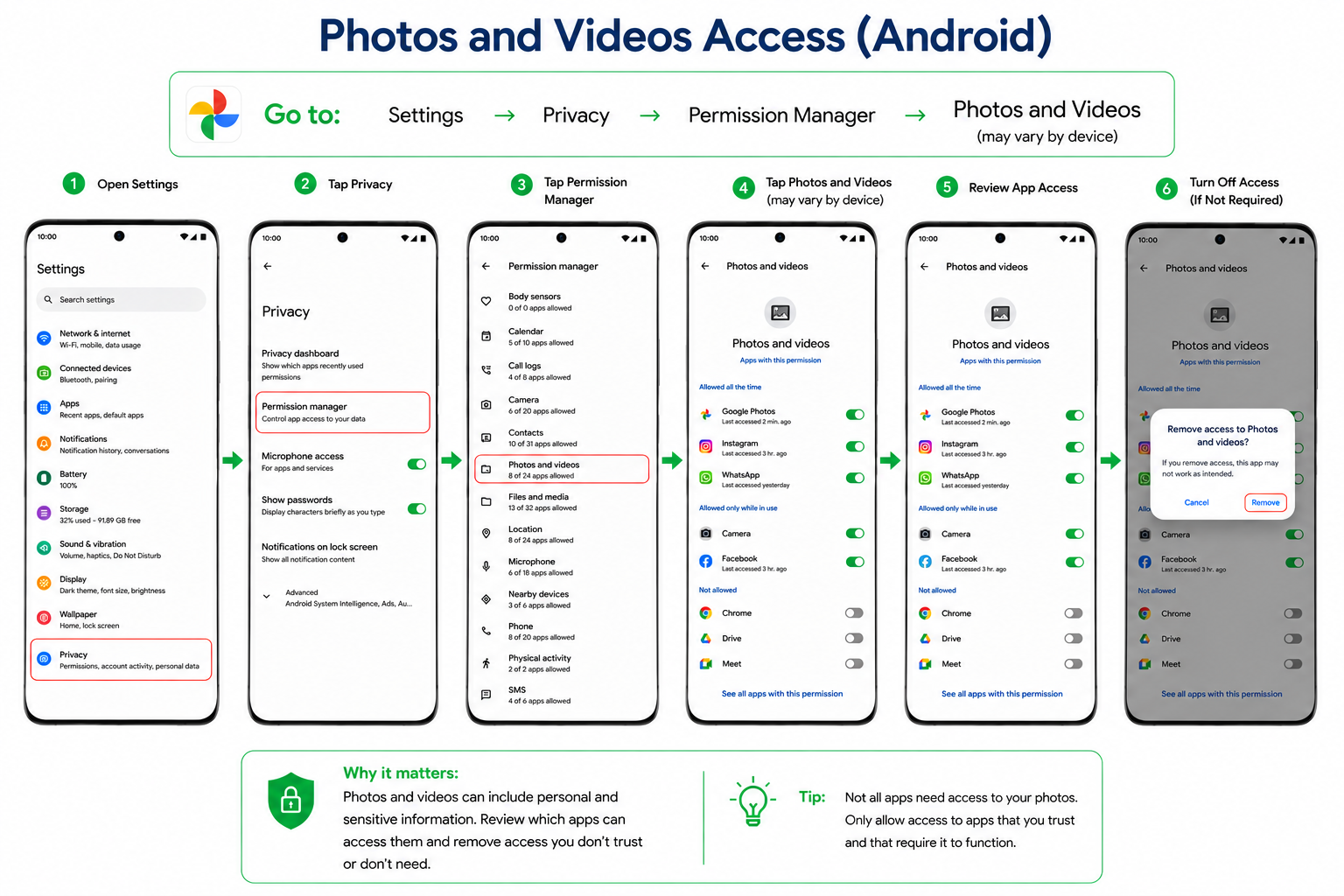
Android
Settings → Privacy → Permission Manager → Photos and Videos
Remove undesired access from the Access permissions.
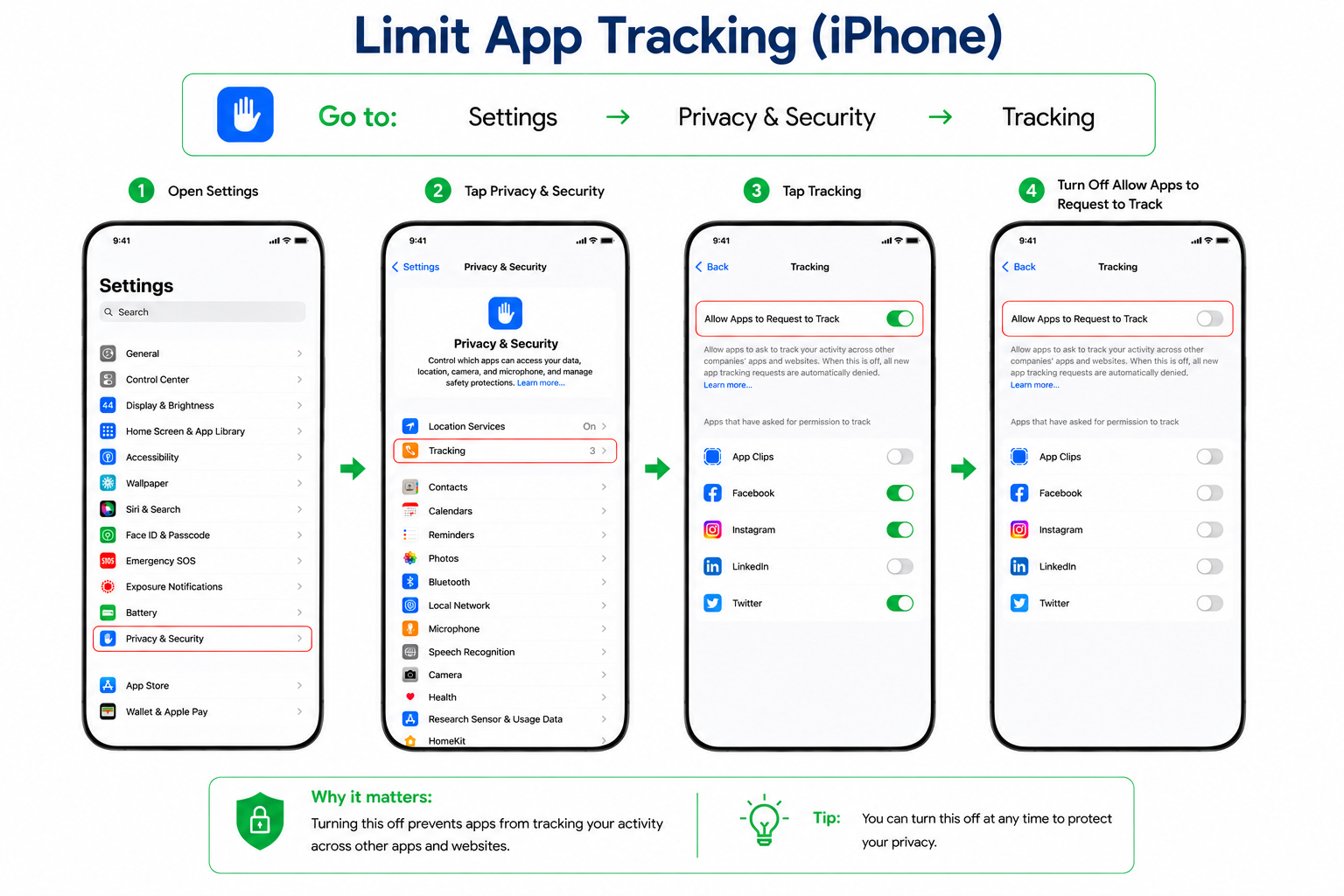
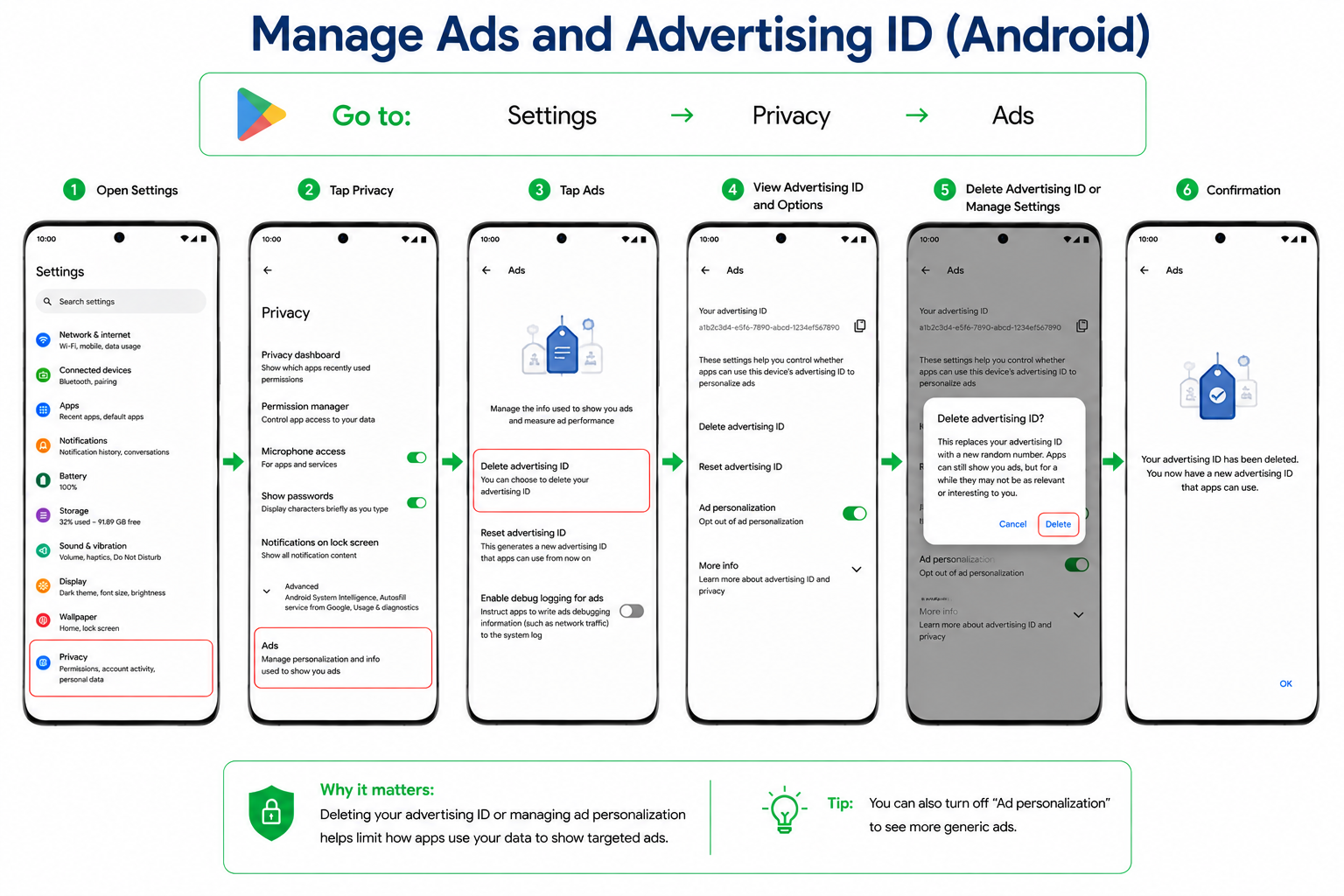
App Usage and Advertising Data
App Usage and Advertising Data Apps use your activity information for analytics and advertising. This includes the features you use and the ads you click.
iPhone
Go to:
Settings → Privacy and Security → Tracking
Android
Go to:
Settings → Privacy → Ads
Then select:
Delete Advertising ID or manage ad personalization settings.
Review Permissions Regularly
The easy way to save yourself from sharing too much information is to regularly check app permissions.
Review:
- Location
- Contacts
- Microphone
- Camera
- Photos
Mostly, apps require limited permissions to run properly. Once you regularly check app permission it minimizes data sharing and ultimately helps you in maintaining control over personal data collected on your phone.